
How to Update Your Email Address in AutoFlow
Overview
If your email address has changed, you can update it directly within AutoFlow using your existing login credentials. After updating your email, AutoFlow will send a verification email that must be completed to maintain access to your account.
Important: Complete the email verification as soon as possible after updating your email address. Failure to verify the new address may prevent you from accessing AutoFlow.
Step-by-Step Instructions
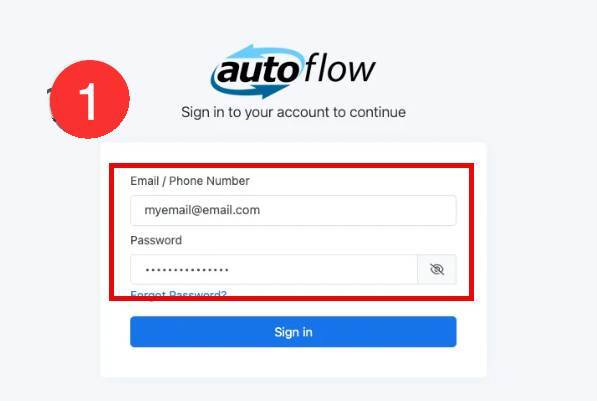
Step 1: Sign In to AutoFlow
Log in to AutoFlow using your current email address and existing password.
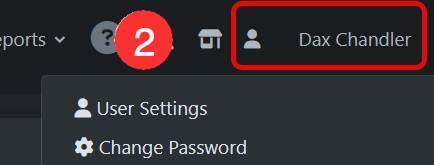
Step 2: Open the User Menu
In the upper-right corner of the screen, click the User drop-down menu.
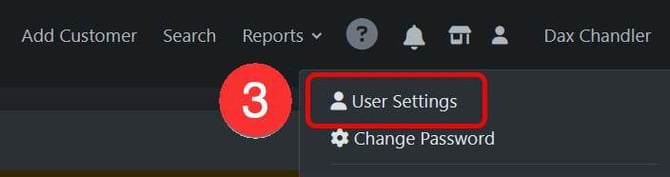
Step 3: Select User Settings
From the drop-down menu, choose User Settings.
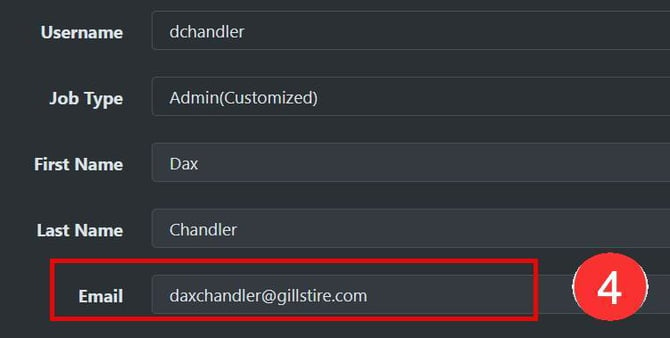
Step 4: Update Your Email Address
Locate the User Information section and update the Email Address field with your new email address.
Step 5: Save Your Changes
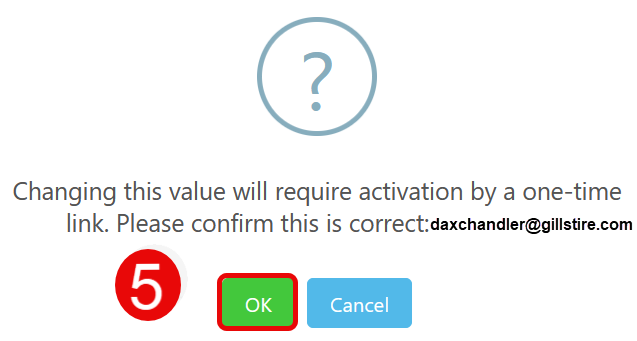
Click into any other field on the page to save the change. When prompted, confirm the email address update.
✅ Your new email address is now saved in AutoFlow.
Step 6: Verify Your New Email Address
AutoFlow will send a verification email to your new email address.
- Open the verification email.
- Follow the instructions provided.
- Complete the verification process as soon as possible.
⚠️ Verification Required: You may be unable to access AutoFlow until the email verification process has been completed.
Step 7: Continue Using Your Existing Password
Your password does not change when you update your email address.
Use your new email address together with your existing password the next time you sign in.
Frequently Asked Questions
Will changing my email address change my password?
No. Your existing password remains the same.
What happens if I do not verify the new email address?
You may be unable to access AutoFlow until the verification process is completed.
Which email address should I use after the update?
Once the change has been verified, use your new email address for all future AutoFlow logins.
Quick Summary
✅ Log in with your current credentials
✅ Go to User > User Settings
✅ Update your email address
✅ Save and confirm the change
✅ Verify the new email address from the email sent by AutoFlow
✅ Continue using your existing password with your new email address