Processing a Transfer from a Retail Location
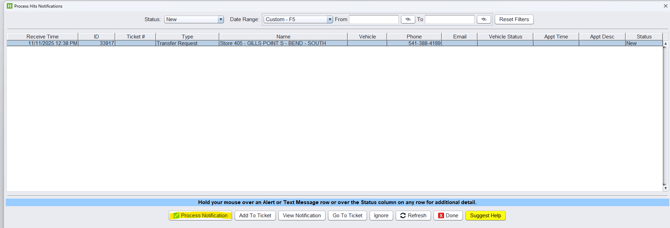
In HITS, click the bell icon in the top right corner.

Click on the order you want to process and click PROCESS NOTIFICATION.
ADD TO TICKET and GO TO TICKET DO NOT WORK.
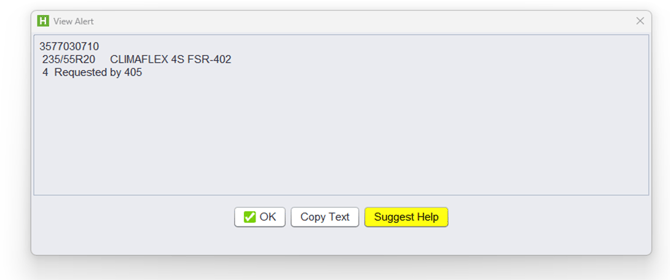
Here we see the transfer request, we will need this info to built an outbound transfer.
Write down the store #405, the product code and QTY then press OK.
EXAMPLE STEP 3
Next we need to build an outbound transfer using the info from above.
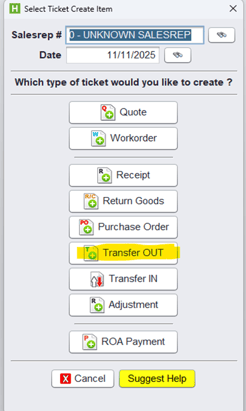
Select CREATE, enter salesrep#, select Transfer OUT.
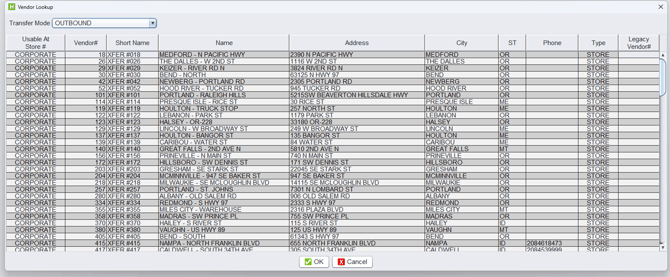
Double click on the store you wat to transfer to. We are using store 405 for this example from the order in step 3.
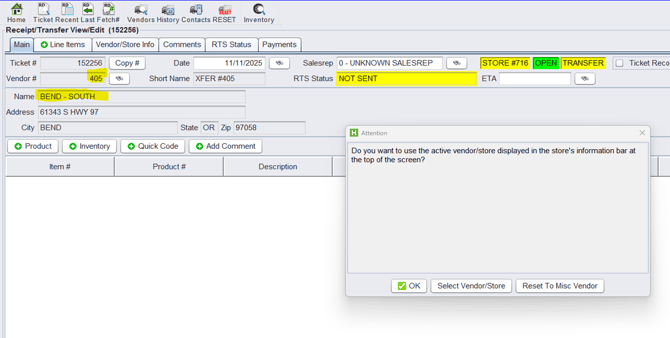
This warning will populate and verify you have selected the correct Store.
Verify the Vendor # and Name, if correct, click OK. Click Select Store/Vendor to search.
Click PRODUCT and add the part number and quantity from example in Step 3 and SAVE ITEM.
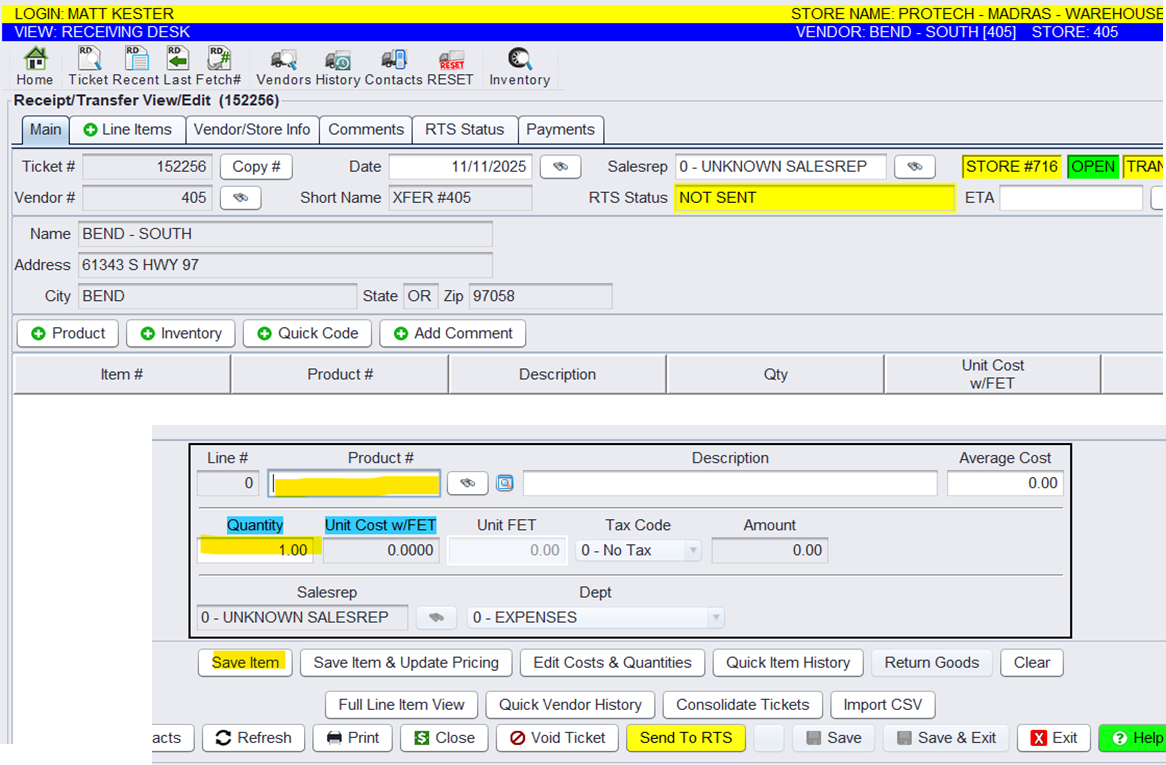
Once Store, Product and Quantity are verified, Select SENT TO RTS.
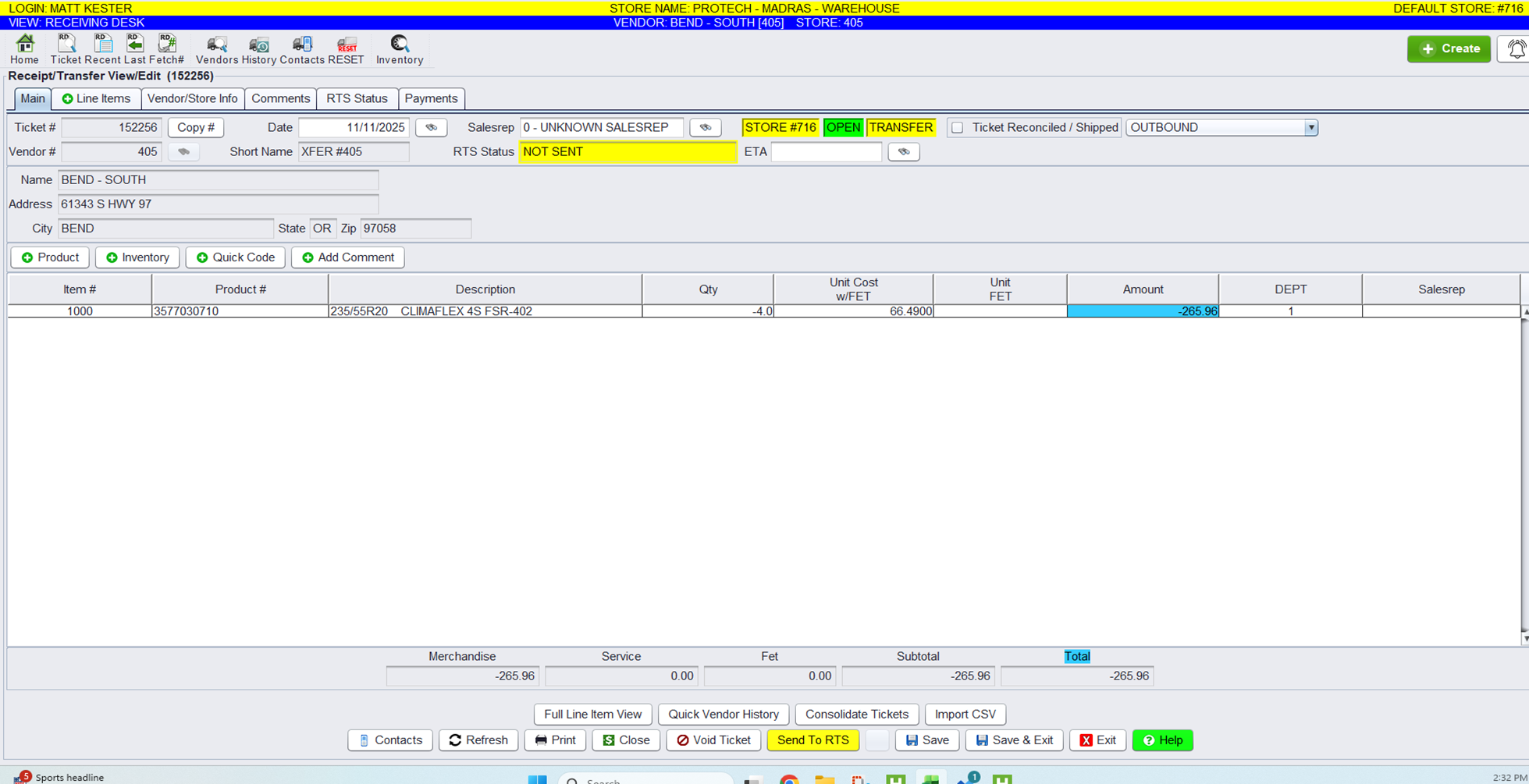
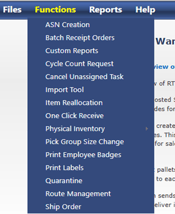
Order will be pushed to RT, It will appear in ROUTE MANAGEMENT under the FUNCTIONS tab.
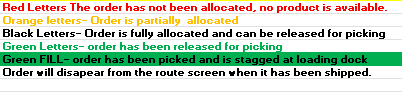
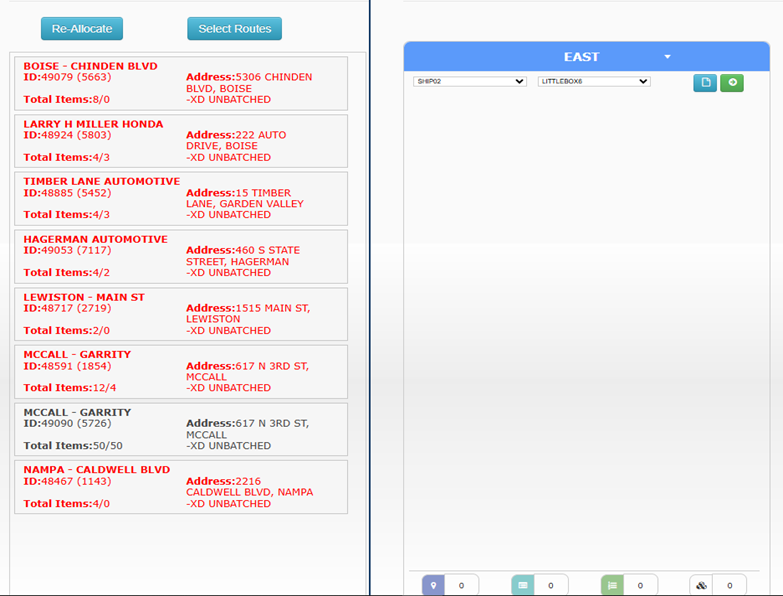
Click and drag order to correct route. (RED LETTERED ORDERS ARE NOT ALLOCATED MEANING THERE IS NO AVAILABLE STOCK AVAILABLE).
Press save in the top right corner to assign this order to selected route.
To release the route for picking, click the green Arrow in the top right. This will release all orders in the EAST route.
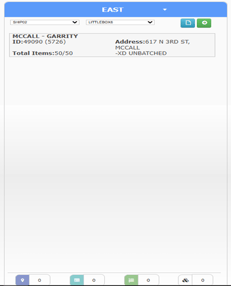
This will release the route to the warehouse to be pulled and staged. The lettering will then turn green indicating it has been released.
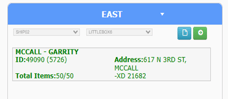
RT uses a color coded process to indicate where each order in ROUTE MANAGEMENT is in the process.