Transfer Out to a Retail Location
Create
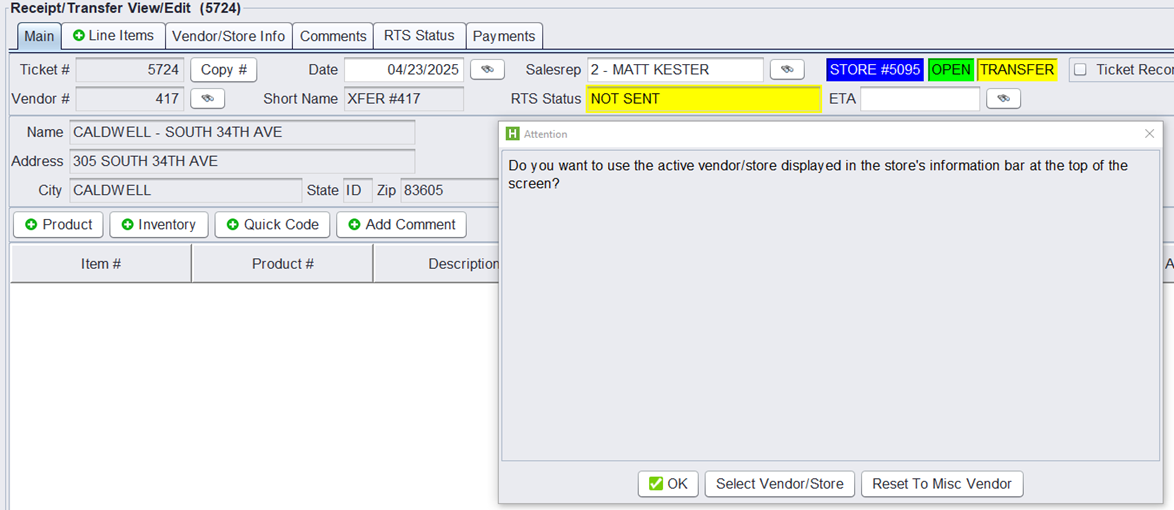
Enter Salesrep # and click TRANSFER OUT


Select transfer to location and press OK

IF customer is correct press OK
Select Product
Enter Product Code in search box and press tab
To search products, press search icon

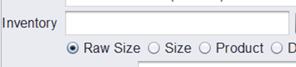
Type criteria into search bar and press find

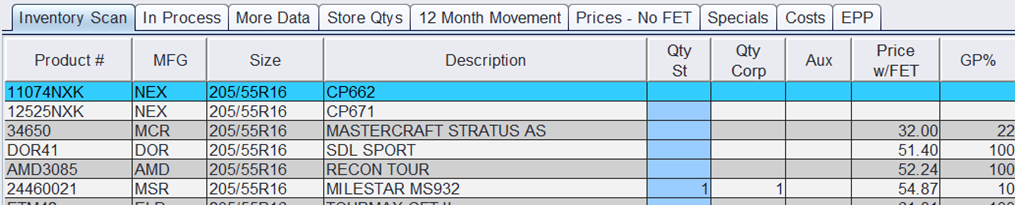
Double click product you want to add to Transfer
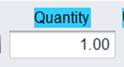
Update Quantity and press SAVE
Press SEND TO RTS, DO NOT CLOSE!!!!!
Pop up will ask if you want to continue, Press send To RTS
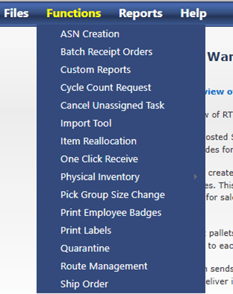
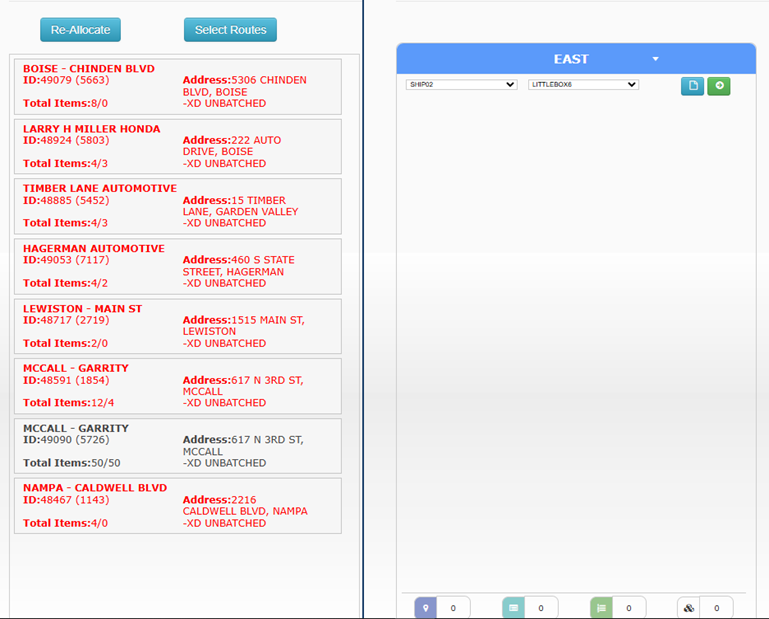
Order will be pushed to RT, It will appear in ROUTE MANAGEMENT under the FUNCTIONS tab.
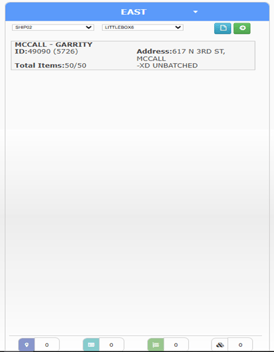
Click and drag order to correct route. (RED LETTERED ORDERS ARE NOT ALLOCATED MEANING THERE IS NO AVAILABLE STOCK AVAILABLE)
Press save in the top right corner to assign this order to selected route.
Press save in the top right corner to assign this order to selected route.
This will release the route to the warehouse to be pulled and staged. The lettering will then turn green indicating it has been released.
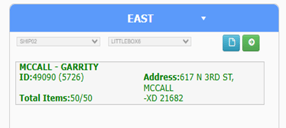
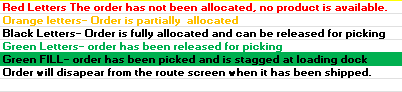
RT uses a color coded process to indicate where each order in ROUTE MANAGEMENT is in the process