Transfer in to the Warehouse from a Retail Location
This function is used to receive product from a retail store (returned goods. Retail store will generate a transfer out ticket, this creates a transfer in ticket at the warehouse. All edits must be done at the transfer out location.
Create

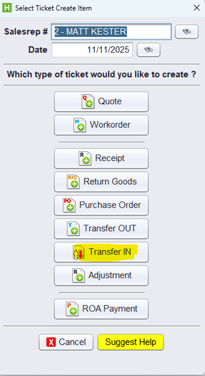
Enter Salesrep # and click TRANSFER IN
All transfer In orders will show here. Right click the correct order and select SUBMIT TO RTS
DO NOT DOUBLE CLICK THE ORDER!!!
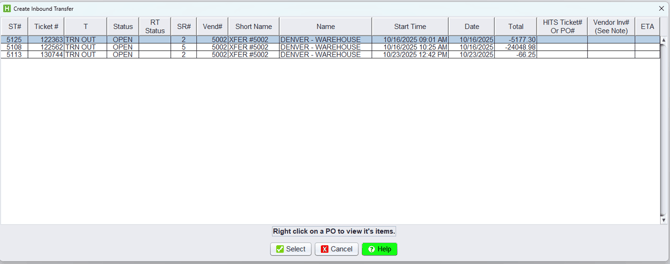
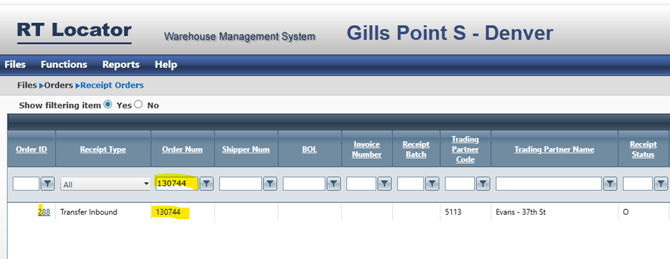
We now log into RT to view and receive the order. GO to FILES_ORDERS-RECEIPT ORDERS to locate. We will use Transfer ticket 130744 from above.
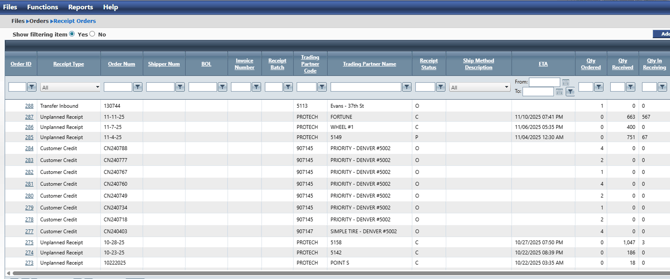
We can search for that order by typing it in the order number search bar and pressing enter. We can see order 130744 has an order ID of 288, we will need that to receive in the gun.
Log into RT mobile. From the main menu select Receive-TRANSFER INBOUND- and enter 288 then NEXT
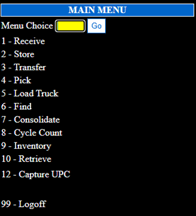
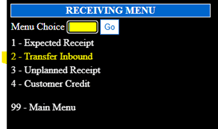
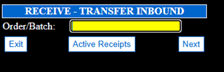
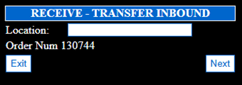
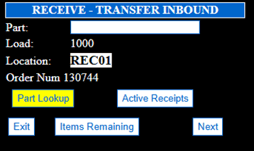
Enter the REC location where order will be received, then select next
Now we scan products
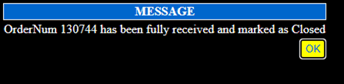
Once all product has been received, you will get this message. Press OK. This order will now flow back to HITS.
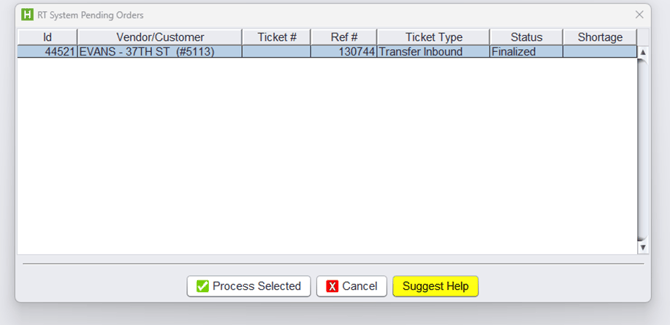
From the HITS main menu, PRESS CTRL+R to open RT Systems pending orders. Here we can see all orders we have completed in RT. We see order 130744 from above.
Click on the order you wish to process and click PROCESS SELECTED
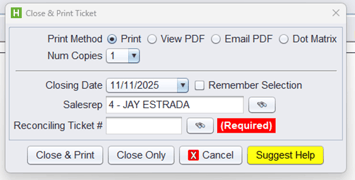
We can now view the ticket and close it. Select VIEW TICKET
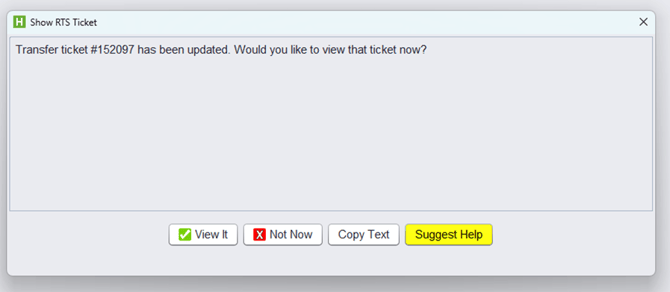
Select CLOSE
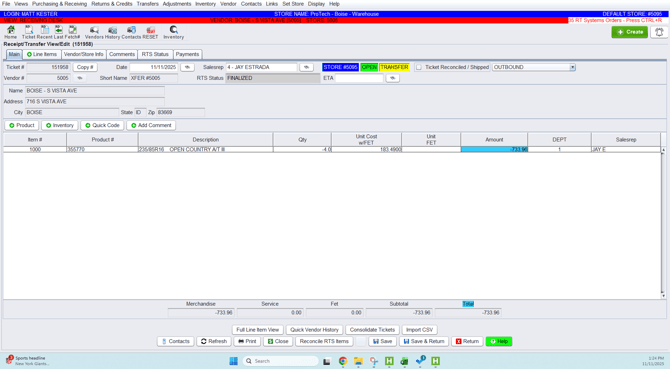
Select Close option, order has been successfully received