.png?width=4500&height=900&name=Untitled%20(4).png)
Warehouse Receiving Instructions for an Unplanned Receipt
These instructions are for an unplanned shipment that does not have a PO in HITS.
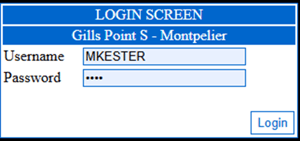
Log into RT mobile on the scanner.
NOTE- link and credentials are location specific. Both will be provided by management.
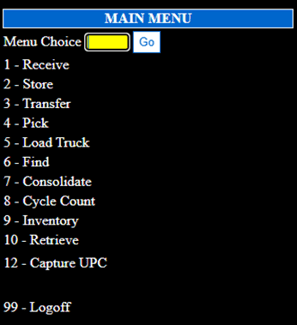
From the MAIN MENU Select RECEIVE.
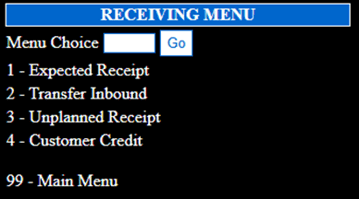
Select UNPLANNED RECEIPT.
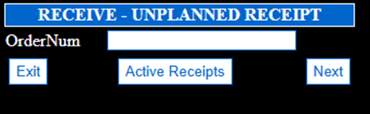
Enter an ORDER NUMBER. This is used for future reference. An invoice number, date or BOL # are all acceptable.
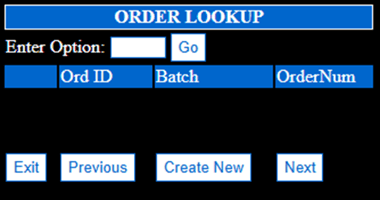
With enter option box empty, Select CREATE NEW.
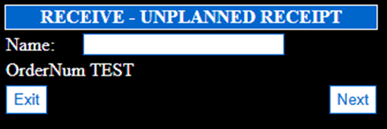
Enter the VENDOR under Name, (example: TOYO/ Point S), click NEXT.
Enter the RECEIVING location for this order. REC locations are required. Click NEXT.
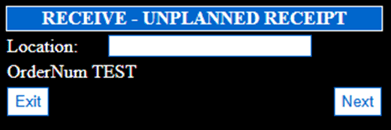
We can now scan each part and enter a quantity.
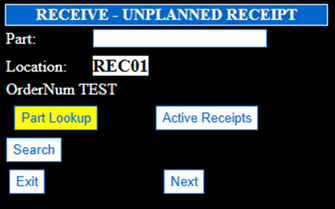
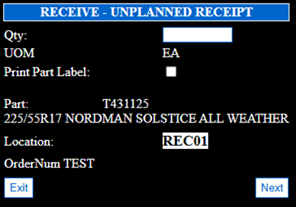
Once all product has been scanned in, select EXIT.
You will get this warning message.
YES- will close the order and no further products can be added to this receipt order.
NO- Keeps this order open, allowing product to be received against this order at a later date.

In RT UI, Select FILES-ORDERS-RECEIPT ORDERS. This screen will list all RECEIPT orders in RT. Since we left ORDER # TEST open, we can edit it here before closing.
Corrections made in the order contents table WILL NOT reflect or update. Changes will need to be done in the receiving location contents table.
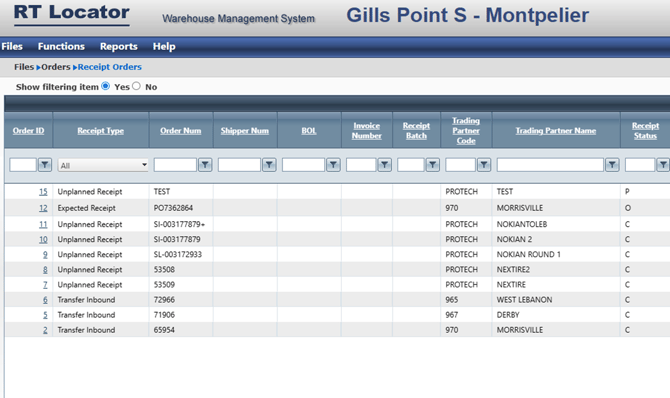
Now we need to build a RECEIPT in HITS using the UNPLANNED RECEIPT in RT.
NOTE: Unplanned receipts in RT do not flow to HITS.
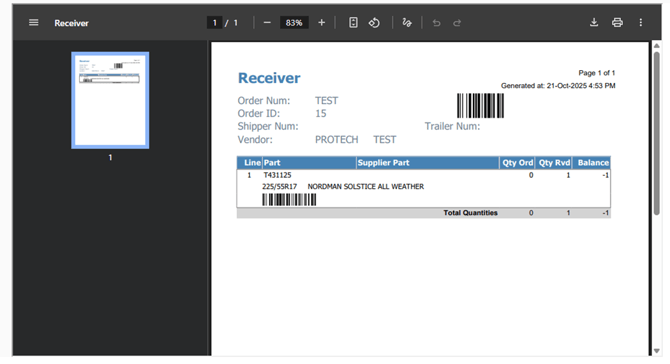
In RT UI, go to Files- Orders-Receipt Orders. Select the order, for this example we will use the test order from above. Click on Receiver report.
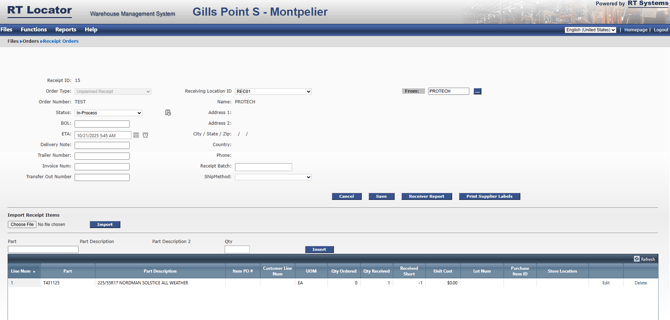
This is what you will use to build the Receipt in HITS.
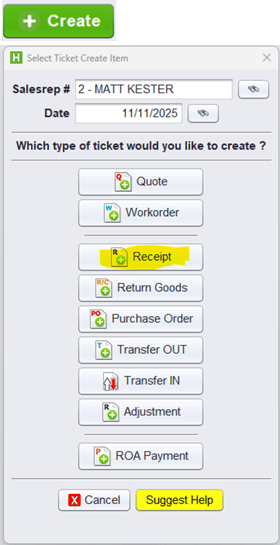
From the HITS main menu, click create in the upper right hand corner, and select RECEIPT.
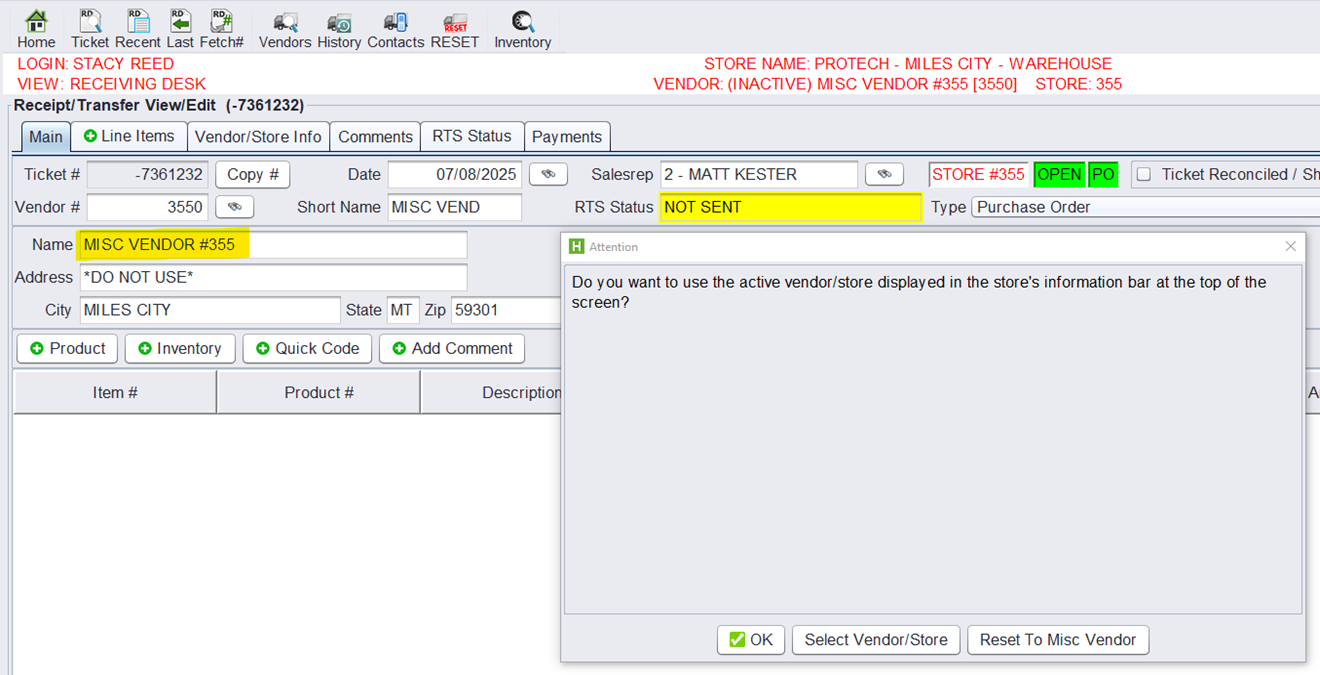
Select the correct Vendor, you can search by selecting SELECT VENDOR/STORE.
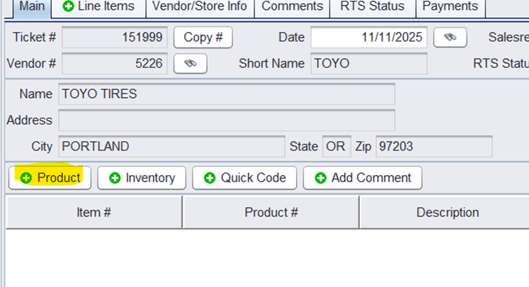
Click the PRODUCT tab to add product to the Receipt.
Add Products and quantities, and verify Unit Cost from the invoice. If Quantities and Cost have been verified from the invoice, we then select the PAYMENTS tab.
If you do not have an invoice at time of delivery, DO NOT close!
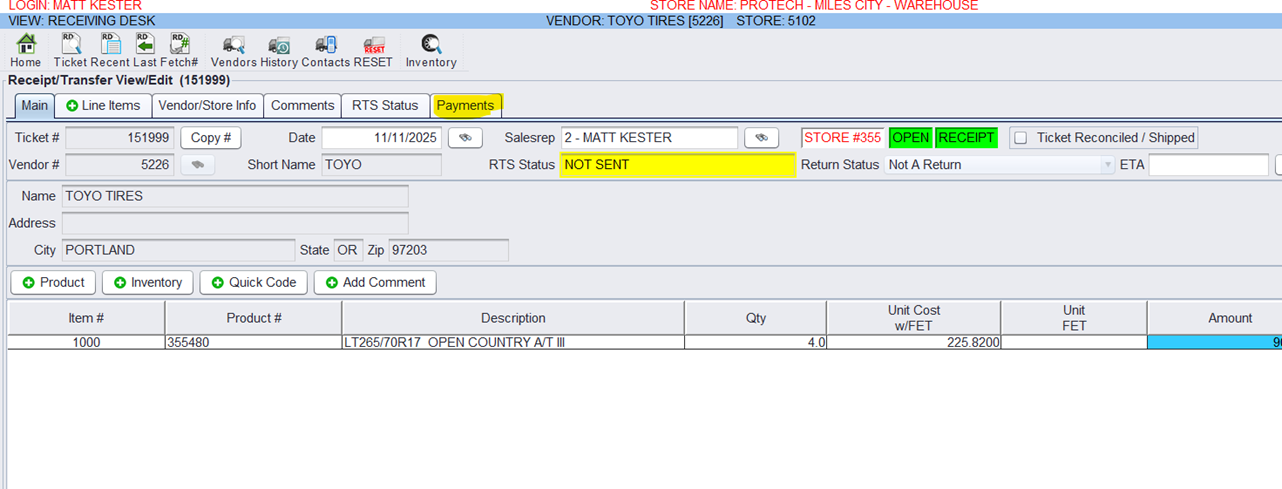
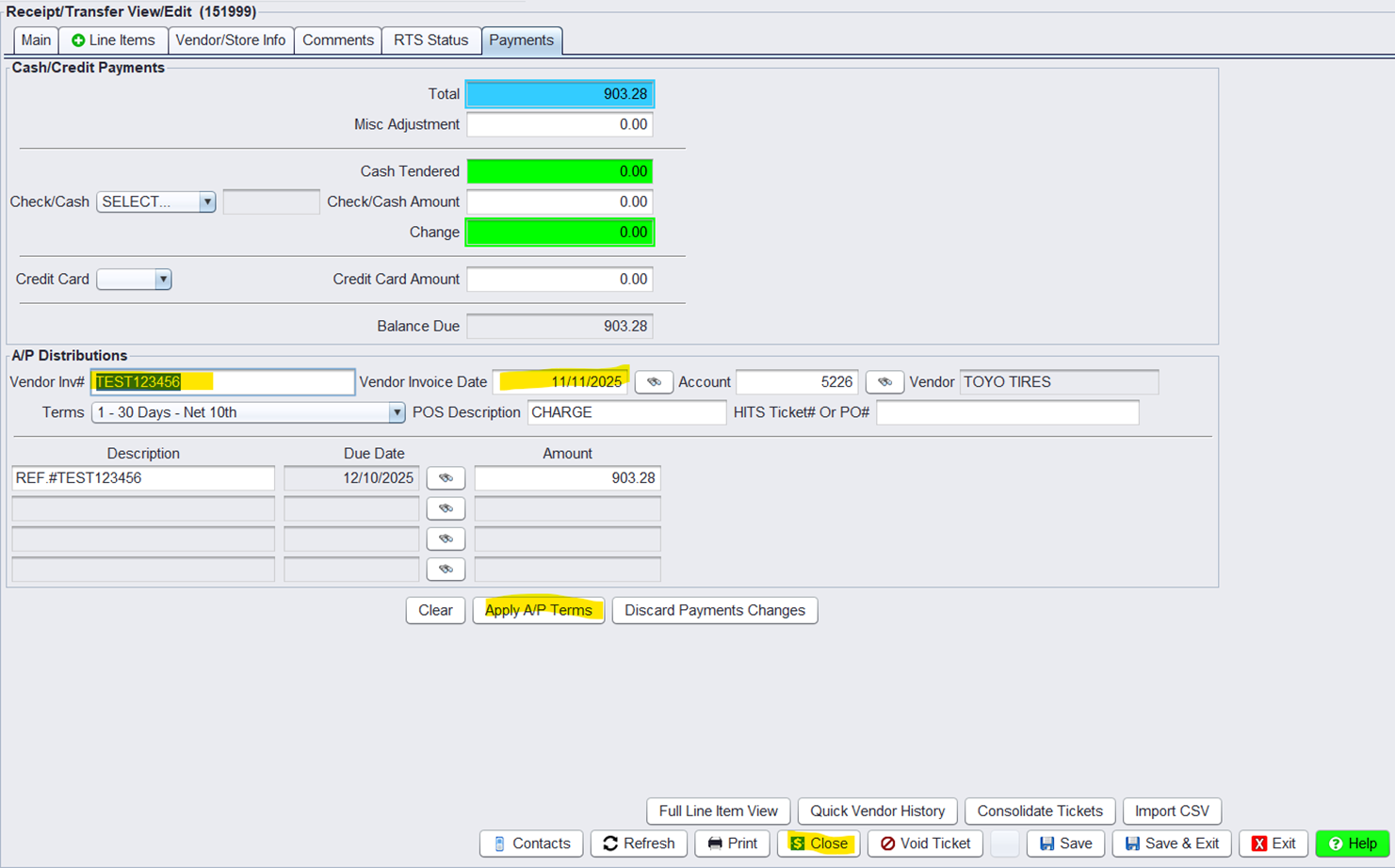
Here we need to enter an invoice # and Vendor Invoice Date, and select APPLY AP TERMS, and close the order.
If you do not have an invoice at time of delivery, DO NOT close! Leave open until you receive and invoice.