Warehouse Receiving Instructions (Purchase Order)
These instructions are used to receive product from a vendor. Point S, US Auto Force and ATD for example. This process is conducted in both HITS and RT.
This first section is conducted in HITS
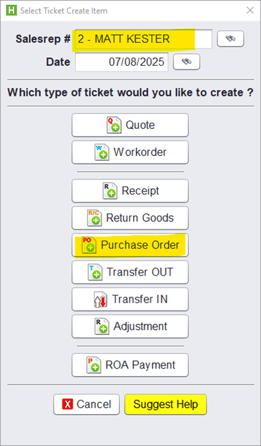
1. Create a PO in HITS. Click Create. Enter Salesrep and select Purchase Order

2. Enter SalesRep and click PURCHASE ORDER
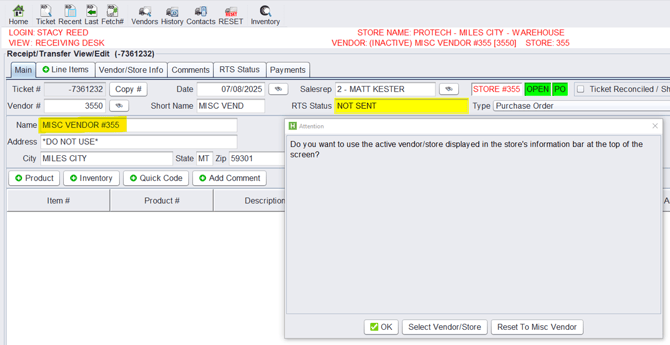
3. Verify vendor. In this example, if MISC VENDOR #355 was correct select OK.
*** If the vendor is incorrect, click Select Vendor/Store
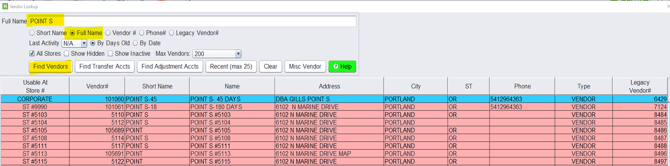
4. To change vendor, enter the Vendor name in Full Name box and click find vendors
5. Double click correct Vendor from the list to proceed.
6. With the correct Vendor selected, click PRODUCT
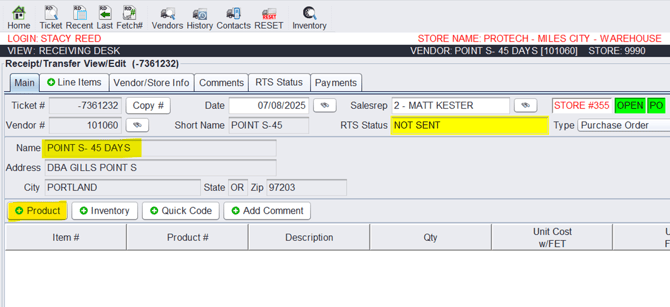
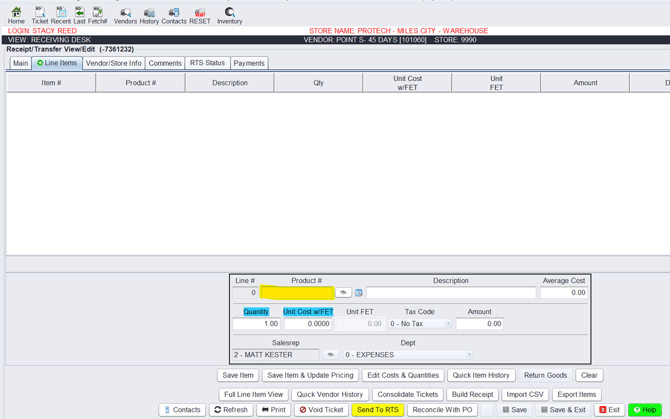
7. Here you will add product to the purchase order.
7.1. Enter product code into Product # box and press enter.
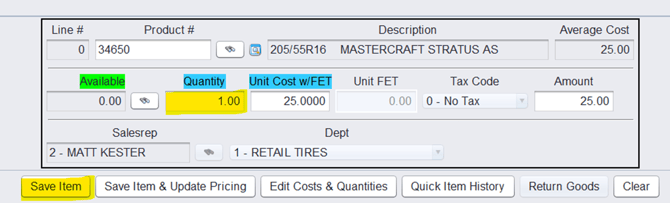
7.2. If a product code exists in HITS it will auto fill with correct description and cost as shown in example. If correct, Enter Quantity and click Save Item. If a product code was entered, skip to step 7.7.
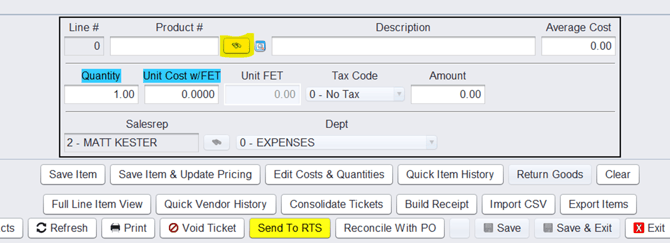
7.3. To search for a part, click the search button.
7.4 Enter the size into the Inventory box and click find.
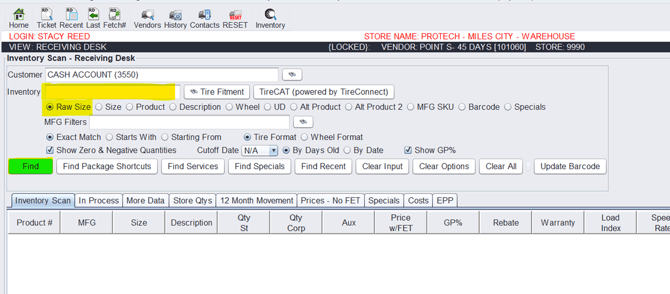
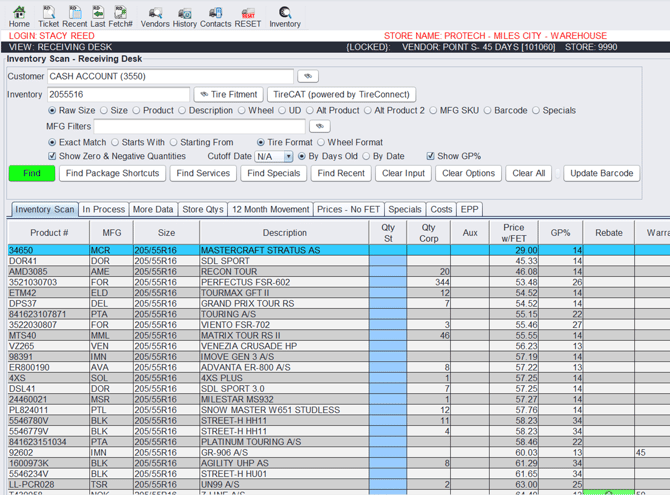
7.5. Double Click the correct product from the list to add to PO.
7.6. Update quantity and press SAVE.
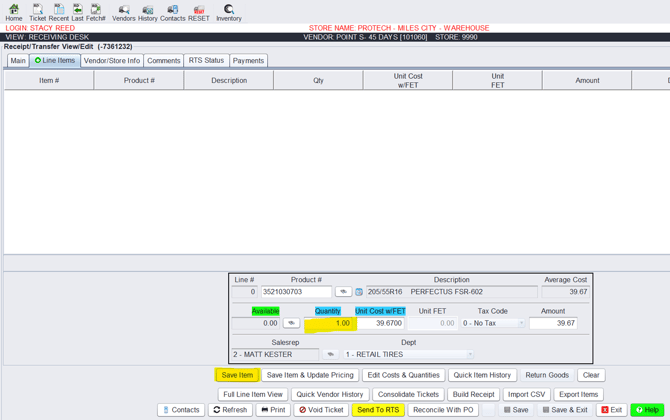
7.7 Product is now on the Purchase order. Multiple products can be added to a single PO.
***Repeat steps 7-7.2 to add additional product.
8. After all products have been added to PO it will look like this example. We now need to verify Vendor and Quantity. If both are accurate click send to RTS.
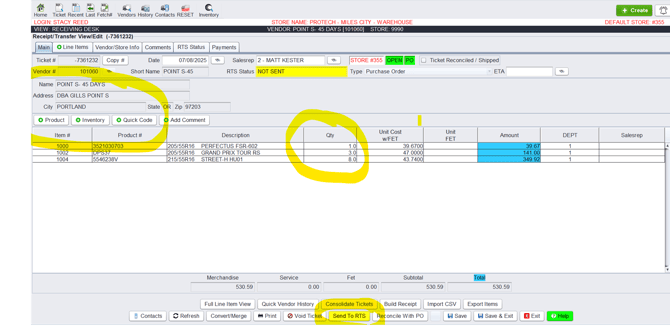
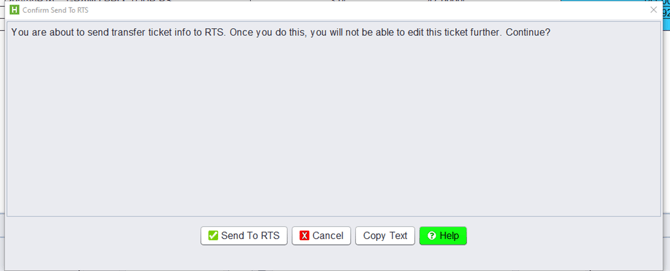
9. You will see this warning message, click Send To RTS to continue.
This order is now in RT, no other action in HITS is needed. Click Exit to return to Main Menu.
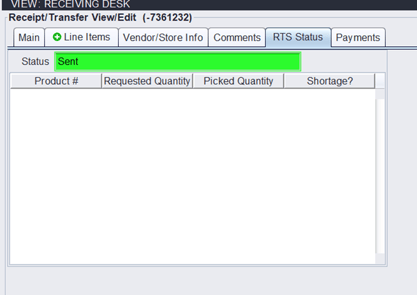
To verify (not Required) the order was sent to RT, Click the RTS Status tab.
The following instructions are to be performed in RT Systems
The PO# generated in HITS will remain the same in RT as well. Above example, PO# 7361232 will be used through this entire process.
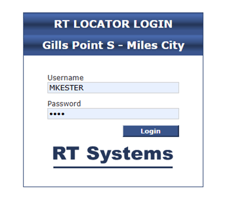
Log into RT locator (https://gillspoint-milescity.rtlocator.com/login.aspx)
NOTE- link and credentials are location specific. Both will be provided by management
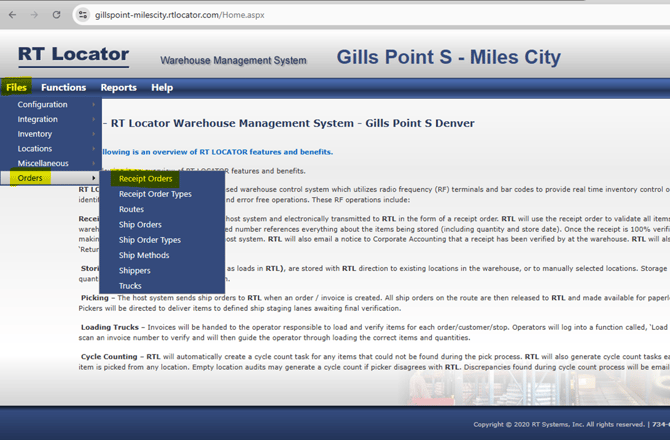
From the main menu, select Files-Orders-Receipt Orders.
NOTE- All Purchase Orders created in HITS and sent to RTS will be a receipt order in RTS
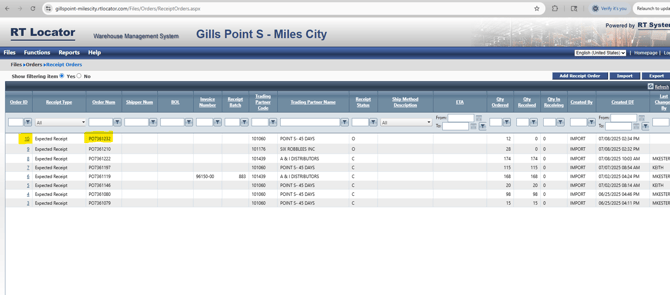
This will bring up all receipt orders in RT (PO FROM HITS). We created HITS PO#7361232 in the above instructions. We see that same PO# listed, verifying we have the correct order. To the left of the PO, we see an Order ID. In this example it is 10. The Order ID will be required in later steps.
Double Click on order ID #10.
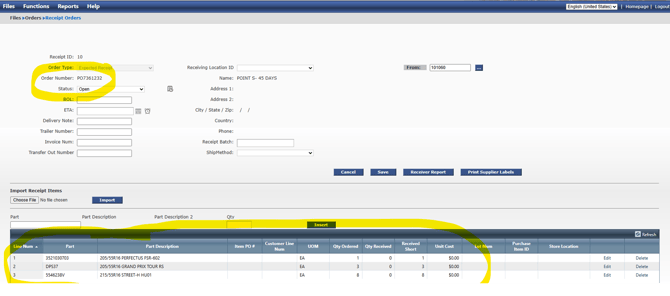
Here we get a more detailed breakdown of the Purchase order. We need to verify the quantities on this RT receipt order (#10) match the Purchase order quantities on the HITS PO (7361232).
To do this we look at both orders and verify. The HITS PO# is provided on the RT Receipt order to make lookup in HITS easier. Below is the RT Receipt order #10.
This is HITS PO #7361232.
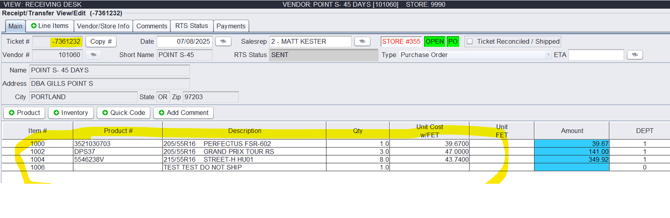
We can see both the RT Receipt ID #10 and the HITS PO#7361232 match and can be received. This step verifies product matches in both systems. If they do not match, contact management for assistance. If they do, proceed to the next step.
The following steps are performed in RT Mobile
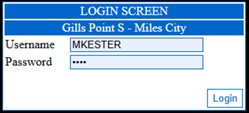
Log into RT Mobile on the scanner.
https://gillspoint-milescity-rtlm.rtlocator.com/Login.aspx?ReturnUrl=%2f
NOTE- link and credentials are location specific. Both will be provided by management.
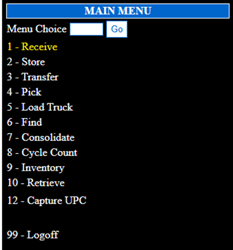
From the main menu, select RECEIVE
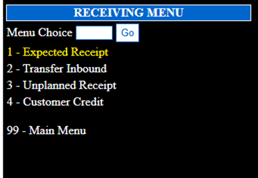
Select EXPECTED RECIEPT
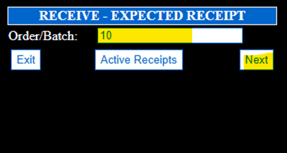
We will need the Order ID from RT (see step 11) and enter it into the ORDER/BATCH box and click next.
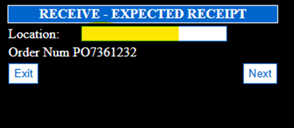
It will ask what location you want to receive the product into. This must be a Receiving location, example REC01.
Now we can scan the barcode on the product.
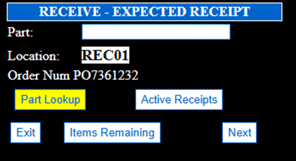
After you scan the product it will ask for the quantity that is being received. (We can see in the Qty Ord column how many are on this PO.)
Enter the Quantity received and press next.
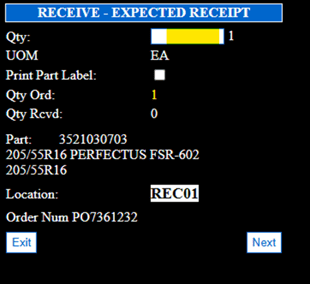
Repeat steps these steps until all product has been received.
After all product has been received, RT will automatically close the Receipt order. If you do not get this message, you have remaining items and can choose to close the order short. Once a receipt order is closed, it will flow back to HITS as a Receipt order.
NOTE- If you exit out of a receiving order and it askes if you want to close and are done counting, select yes to close short or no to leave open and come back to it later. Once closed it is final.
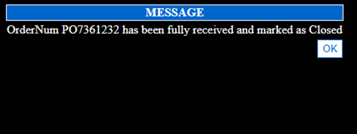
The following steps are completed in HITS
Log into HITS POS. In the top right corner you will see a warning for an incoming receiving order from RT. Press control+R to open. We see PO 7361232, double click on it.
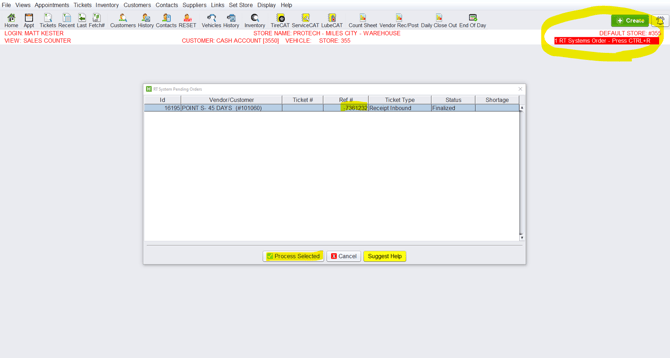
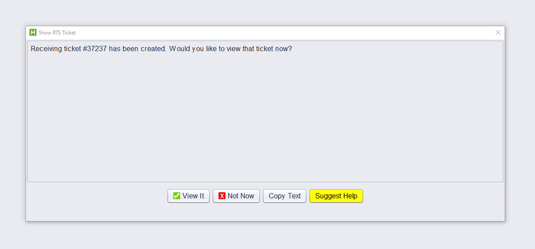
This warning will populate, select view it to open or not now to finalize later. If you do select Not Now, this order will show in receiving orders under an open Receipt for later viewing.
For this example, press View IT.
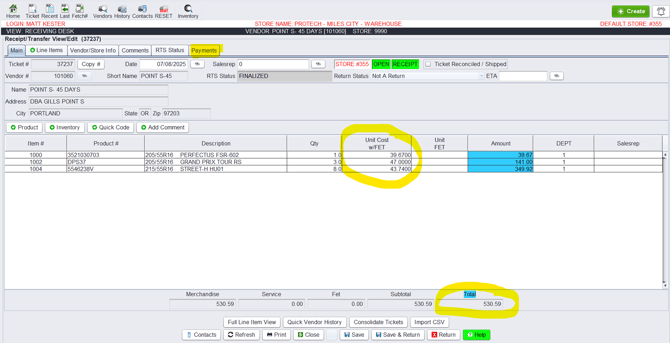
This is the Receipt order RT returned to HITS. You can see in Green, that it is an open receipt meaning we have not closed/ finalized it.
We need to verify the product cost. You will need the purchase invoice to complete this step. Cost needs to match the invoice exactly. Once the total matches the invoice, Click the PAYMENTS tab.
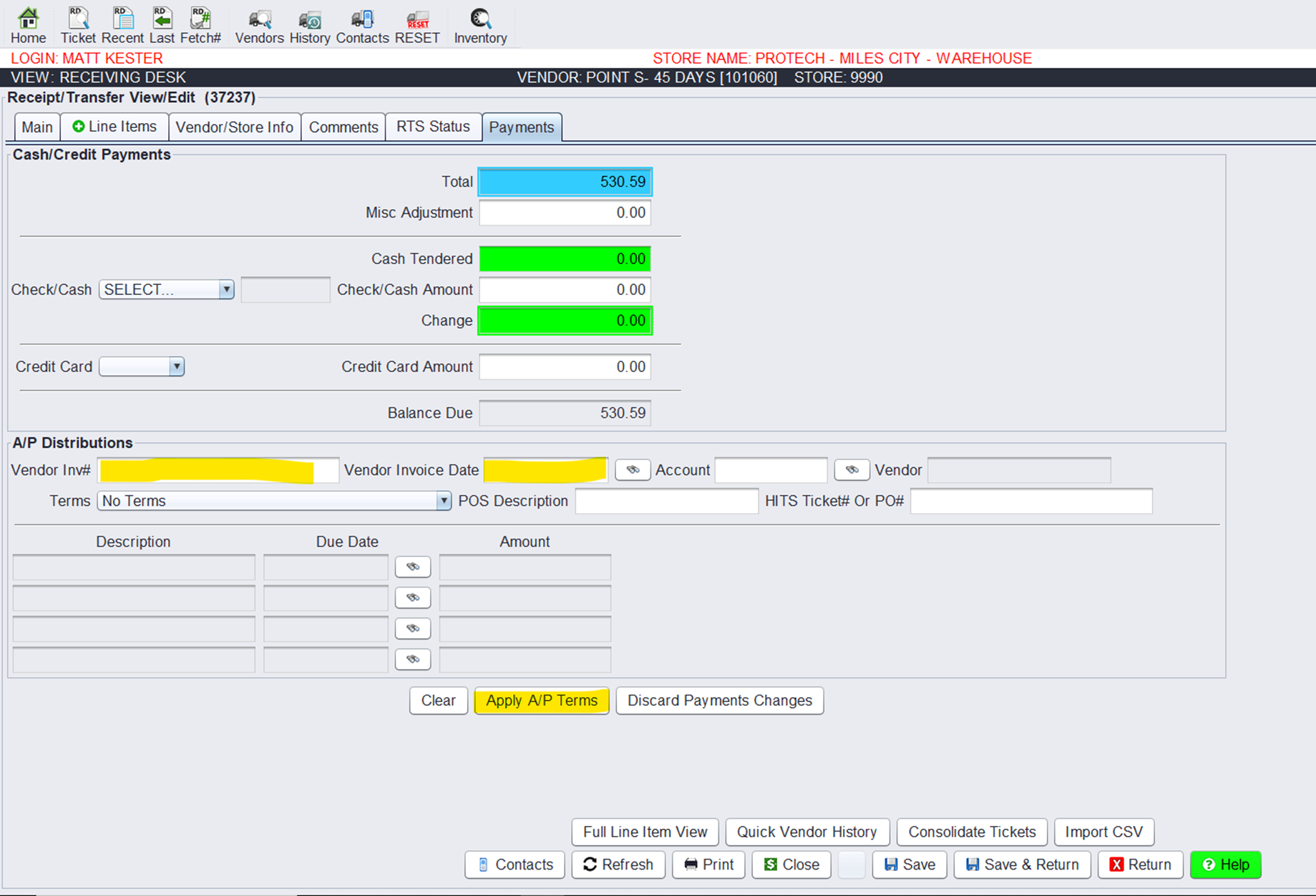
In the PAYMENTS tab, we need to fill in the vendor invoice # and vendor date box. These are on the purchase invoice. Next, we click apply A/P Terms to autofill remaining vendor info.
After selecting Apply A/P Terms, it will look like this example. From here we can close the Receipt.
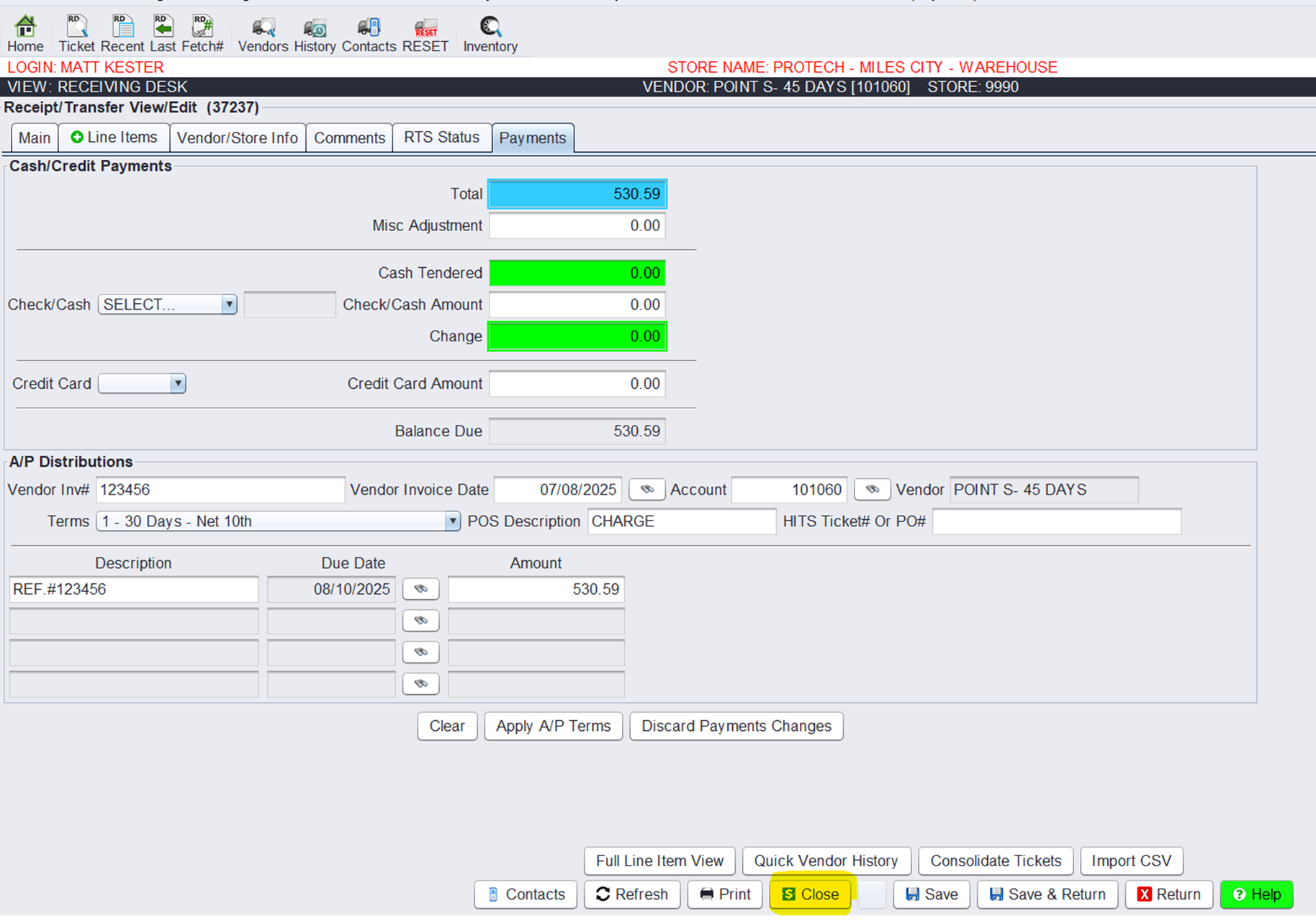
Enter Salesrep name and click close only.
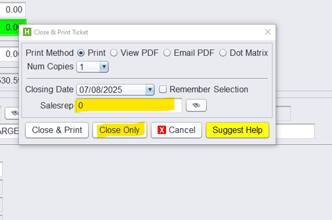
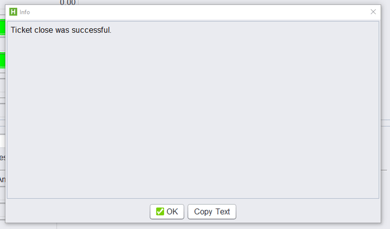
Click OK to proceed
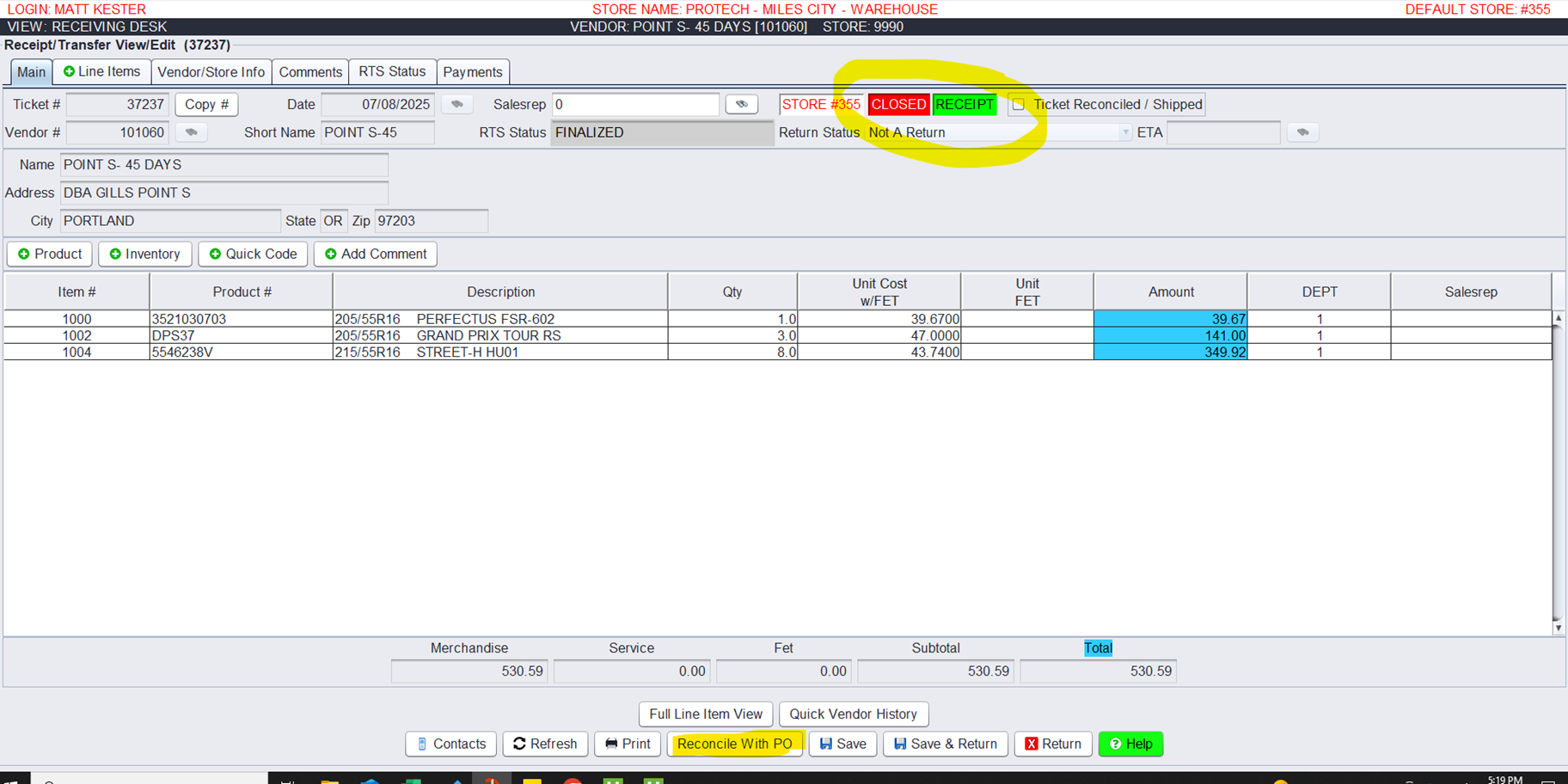
Next we will reconcile the PO to the Receipt. We do this to clear out received purchase orders. On the bottom of the page, click reconcile with PO button.
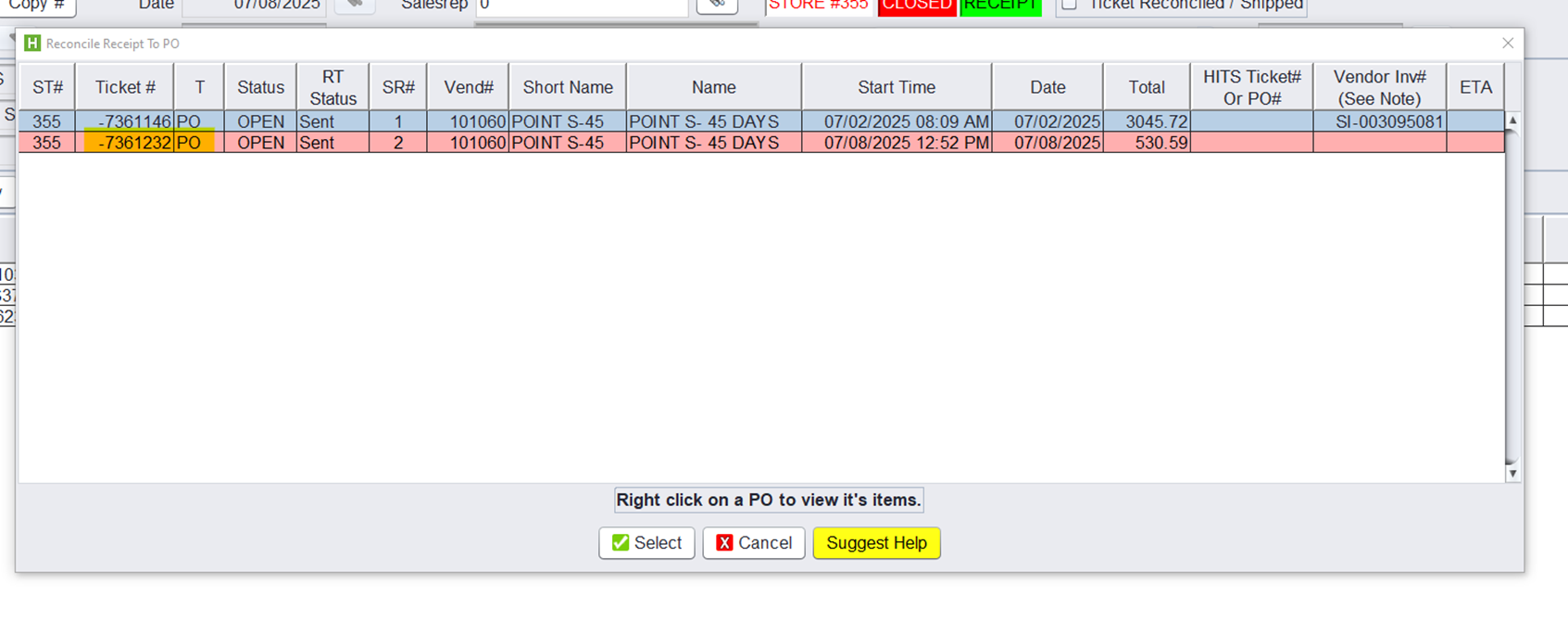
Double click on the PO that is highlighted. If no PO is highlighted, reference the PO# and double click.
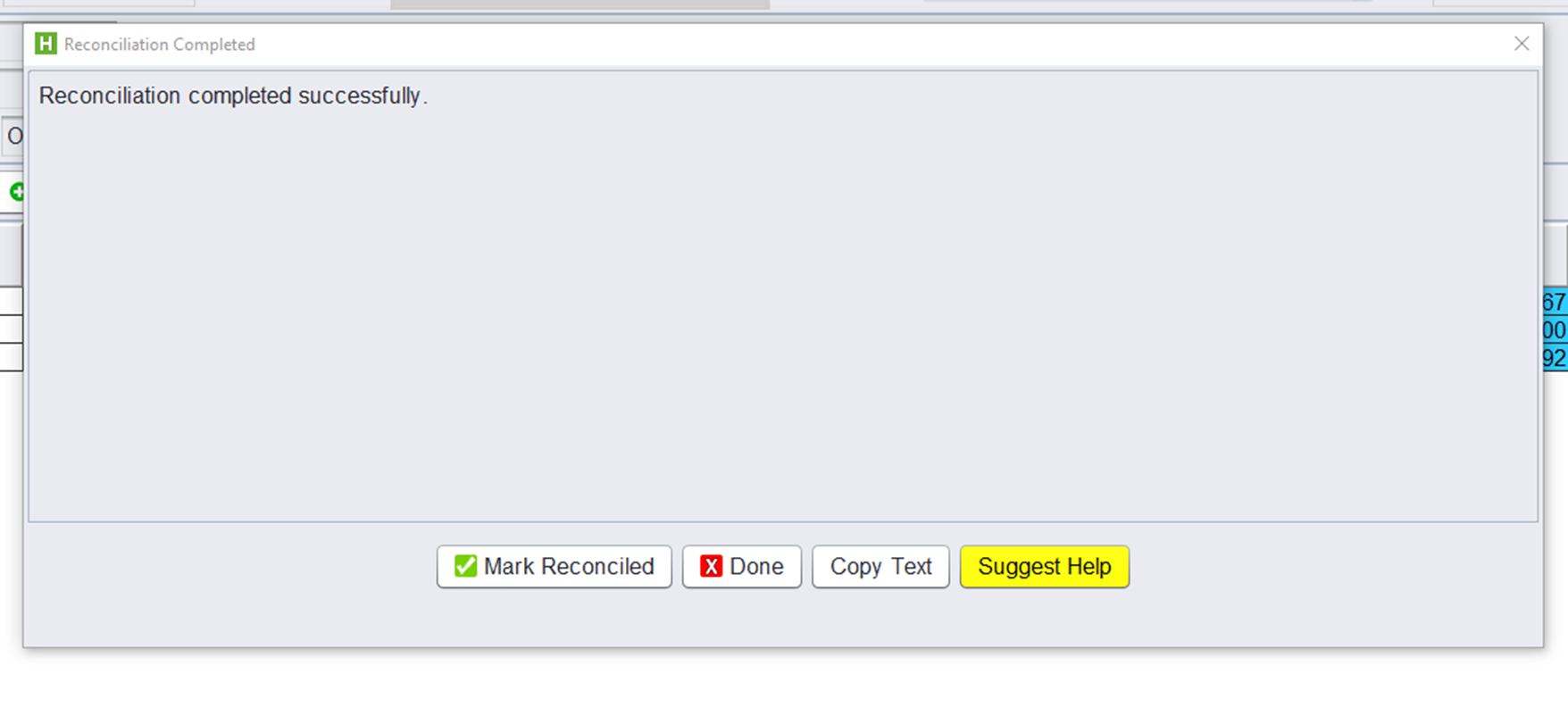
Click Mark Reconciled. This receipt order is finalized and all steps are complete.