
Missing Inbound Calls
Many times, a lack of permissions for the NextivaONE app is what causes inbound calls to be missed. In order to properly receive and be notified of inbound calls, you will need to enable notifications and allow background app refresh for NextivaONE. The steps below can walk you through for iOS and Android.
iOS
- Open your iPhone settings.
- Scroll down and select Apps.
- Search for and select NextivaONE, or you can scroll down until you find NextivaONE.
- Ensure that the toggle switch is set so that background refresh is enabled.
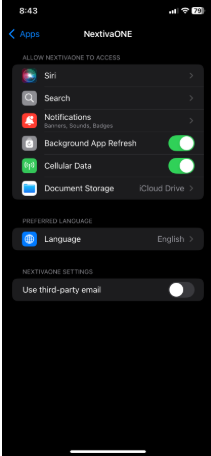
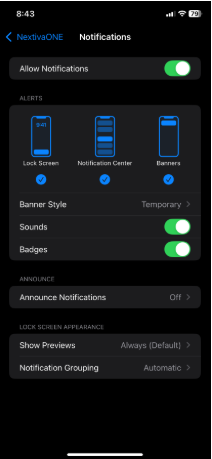
5. Select Notifications.
6. Ensure that notifications are enabled with sounds and badges turned on.
Android
These steps are a general guide, as there are many different types of Android devices. Your device may have a different settings menu layout.
- Open your device settings.
- Tap Apps.
- Select See all apps.
- Scroll down and select NextivaONE.
- Select Permissions.
- Select Notfications.
- Ensure that all notifications are enabled.
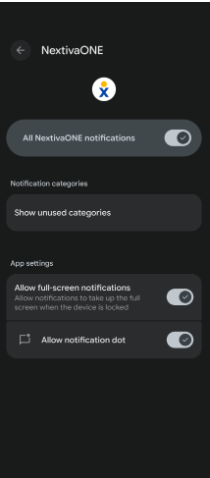
8. Navigate back two screens to return to the main app settings screen.
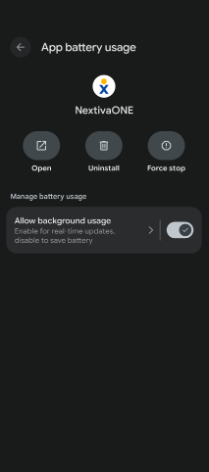
9. Select App battery usage.
10. Ensure that Allow background usage is enabled.
Mobile App Health Check
Within the mobile app, you can run a health check to see if any services are not functioning correctly.
- Tap on your avatar in the upper left-hand corner.
- Select Preferences.
- Tap Health Check.
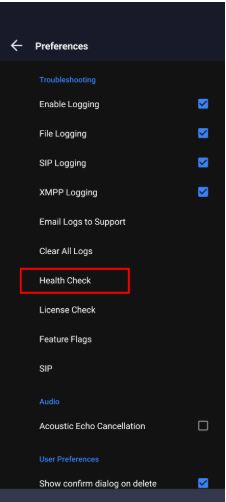
4. Tap Run Check.
5. The app may take a few minutes to run the check.
6. If there are issues, capture a screenshot and send it to Nextiva support.
Focus Mode/Digital Wellbeing
Focus Mode on iPhone can disable app notifications while Digital Wellbeing on Android can both pause notifications and disable apps entirely. If you are missing calls ensure that NextivaONE is allowed to notify during Focus Mode/Digital Wellbeing time.
For information on how to adjust Focus Mode for iPhone, click here.
For information on how to adjust Digital Wellbeing for Android, click here.
Do Not Disturb
Both iPhone and Android have Do Not Disturb features on the device itself that can block app notifications. If NextivaONE is not granted an exception, you will experience missed calls as your mobile device will block the inbound call notification from NextivaONE.
To ensure that this does not affect you, consider setting up custom settings for your mobile device do not disturb feature so that the NextivaONE application is allowed to create notifications.
For information on how to adjust Do Not Disturb on iPhone, click here.
For information on how to adjust these settings on Android, click here.