Create a Meeting
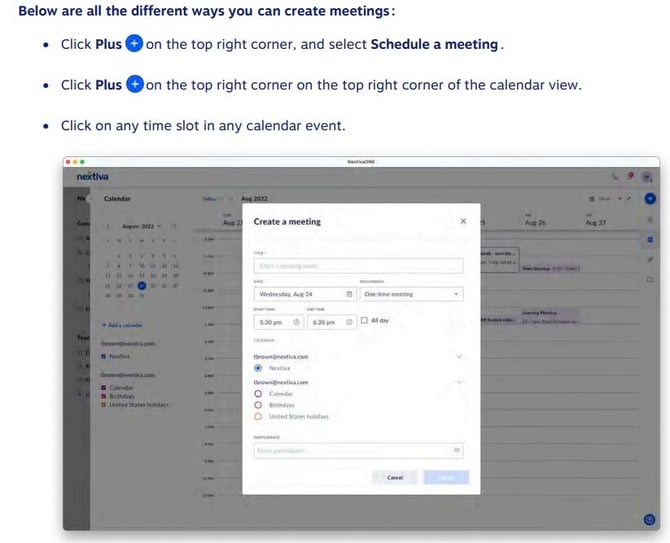
Under Create a meeting, enter a name, choose a date and time, and the recurrence of the meeting. Select the calendar to use, such Google Calendar or Outlook.
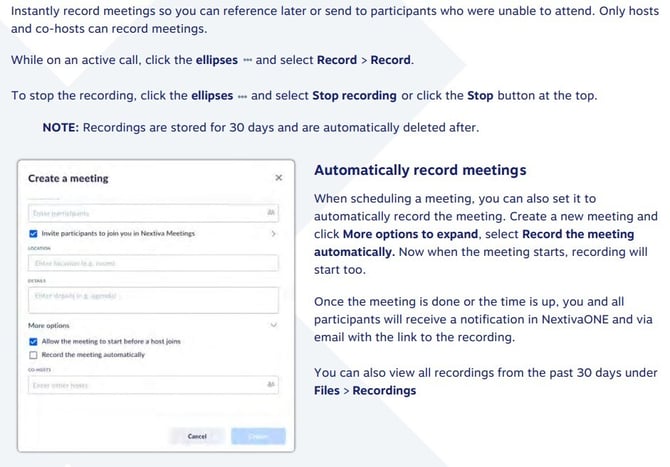
Search for teammates name or enter the email address of those you would like to invite to the meeting. Click More options to add co-hosts and adjust additional meeting settings. Assign co-hosts so when you end the meeting it doesn’t end the meeting for all participants. You can also assign a co-host when scheduling a meeting prior to the meeting time. Click Create.
Starting a Meeting
Joining a Meeting
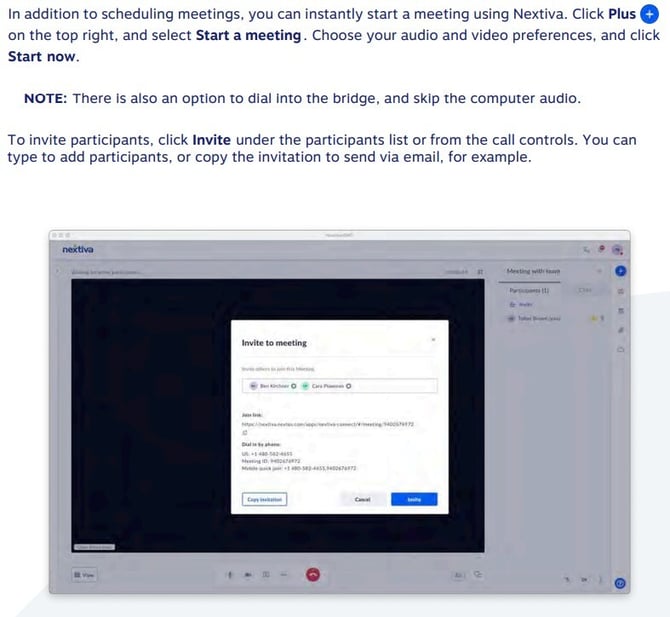
Click Join under the meeting details or from the meeting email invite or link. You can also join a meeting by dialing in and entering the meeting ID, if provided by the host or co-host.
Editing a Meeting
Click on the meeting and select Edit.
Deleting a Meeting
To delete an existing meeting and cancel the meeting for all invited participants, click on the meeting, and select Delete > Yes > Delete.
Host Settings
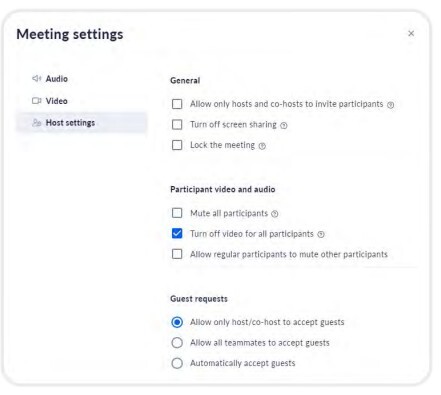
As the host of a meeting in NextivaONE, you can control who can invite participants and accept invites, including the ability to mute audio, disable screen sharing and video for all
participants, and more.
Hosts can also assign another participant as a co-host, and they will receive the same permissions. Assign co-hosts so when you end the meeting, it doesn’t end the meeting for all participants. You can assign a co-host when scheduling a meeting prior to the meeting time.
To access host settings, click the ellipses from the meeting control panel > Meeting settings > Host settings.
Recording Meetings