Interview Scheduler and Notetaking in Paylocity
Inviting a Candidate to Self-Schedule an Interview
Paylocity now offers the ability to schedule an interview within the Recruiting Tab.
To get started, navigate to the candidate’s profile and scroll over to the Interviews tab. In this instance, we are walking through how to allow candidates to self-schedule, so click on the “Invite Candidate to Self-Schedule” tab.
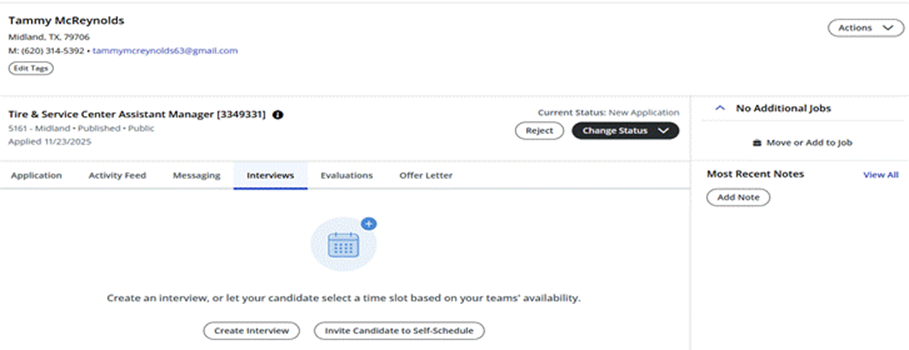
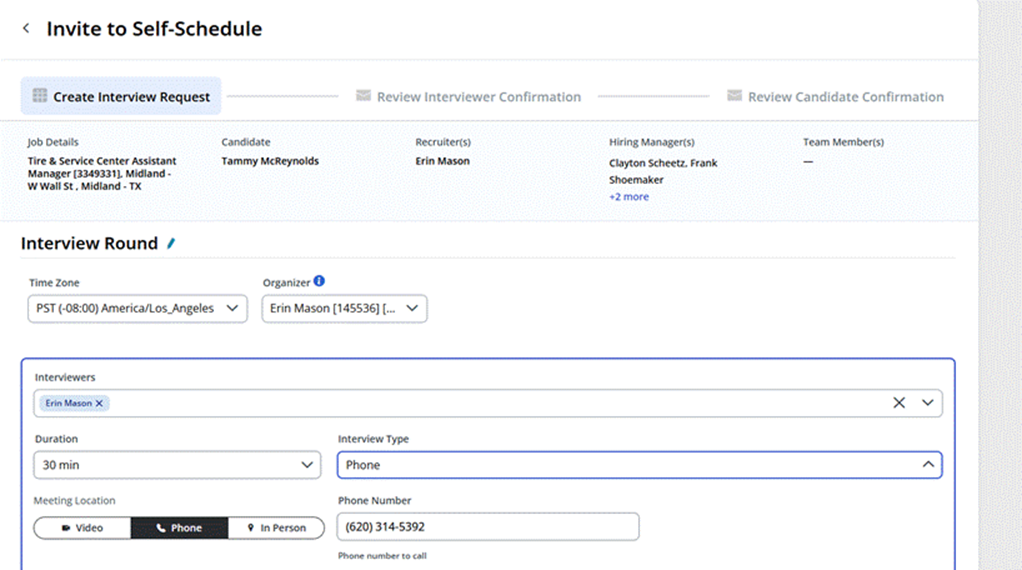
In this tab, we will select the Interviewer(s), the Interview Type, and Duration. In this case, I’ve selected myself as the Interviewer and have chosen a 30-minute Phone interview.
Please also note that if you are just the Organizer, be sure to select the correct time zone for the Interviewer, as well as the correct Interviewer’s name in the drop-down.
Next, we will scroll down to our availability. If the interviewer’s calendar is not connected to Paylocity, you will see this message:
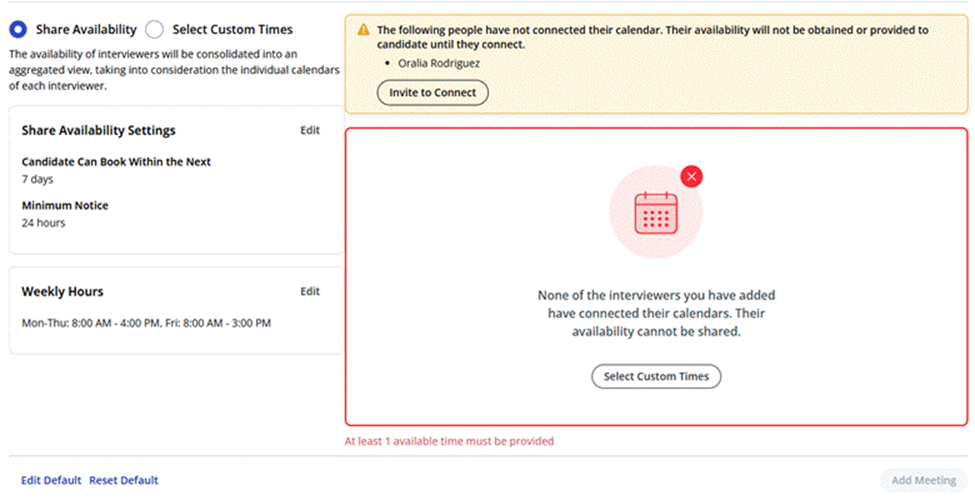
*If you see this message, please stop and click the Invite to Connect button within this field.
If the Interviewer’s calendar IS connected, their availability will populate within the field below. Make sure Share Availability is selected, then click on the Add Meeting tab at the bottom.
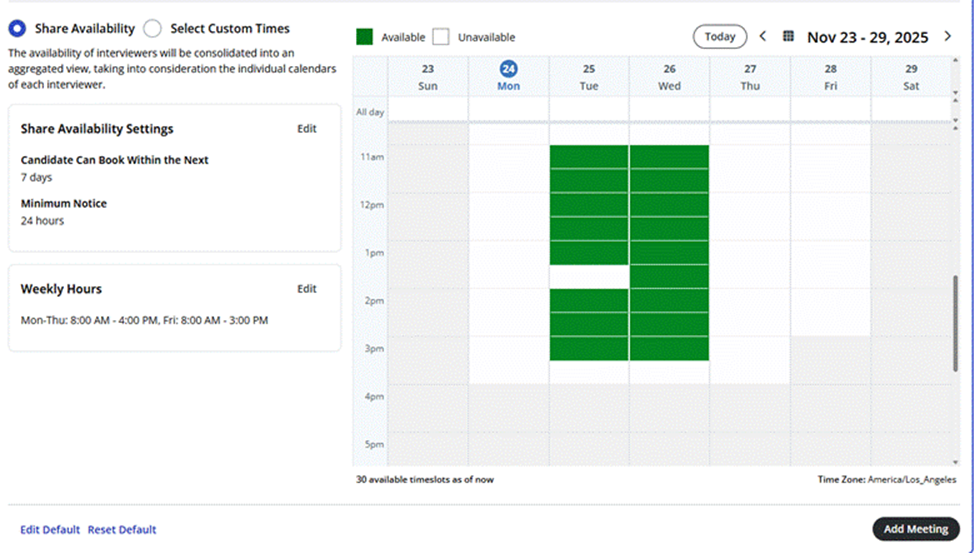
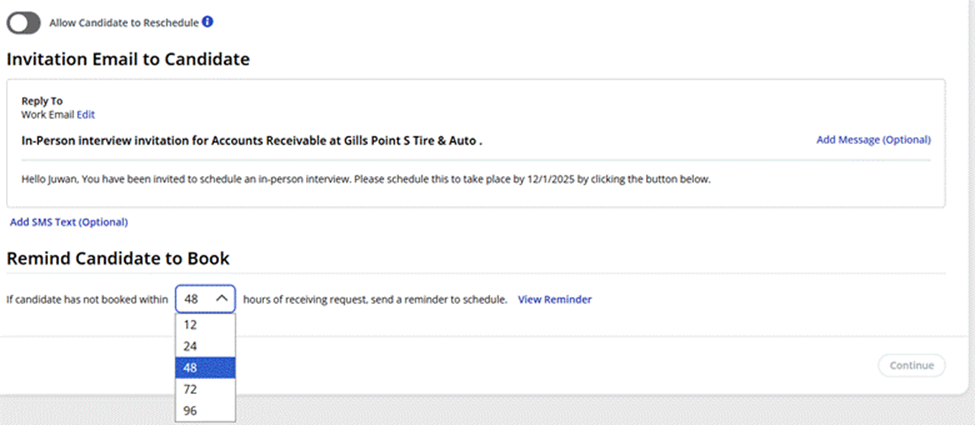
We will next scroll down to the Invitation Email to Candidate, and either add to or approve the generic system message. You can also choose to either toggle the Allow Candidate to Reschedule tab on or off, depending on preference. The Remind Candidate to Book option can be adjusted, as well, depending on your preferences.
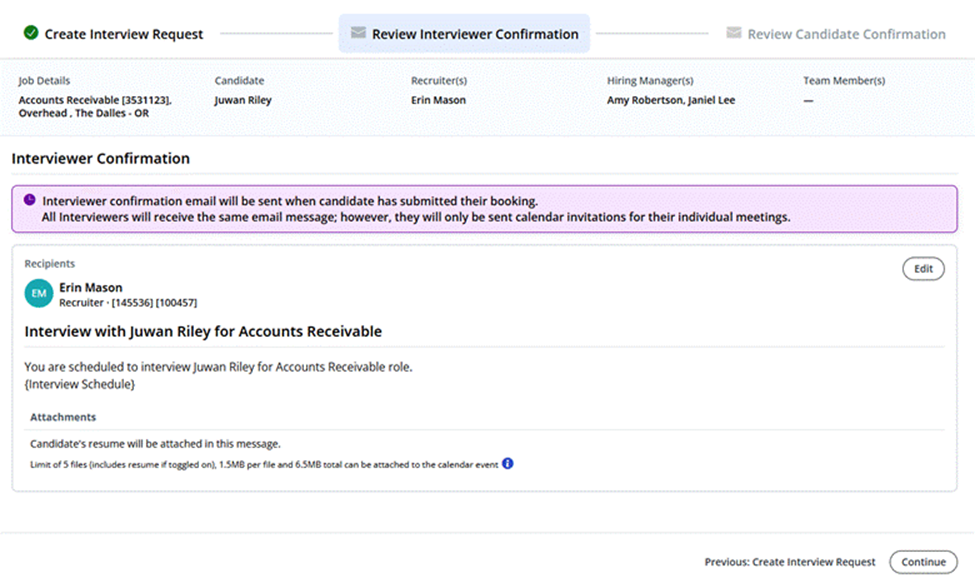
In this screen, we will verify the information for the interview. If any of the information is incorrect, you can choose to edit the meeting from this screen, which would take you back to the previous steps to change the details.
If everything looks correct, please click Continue.
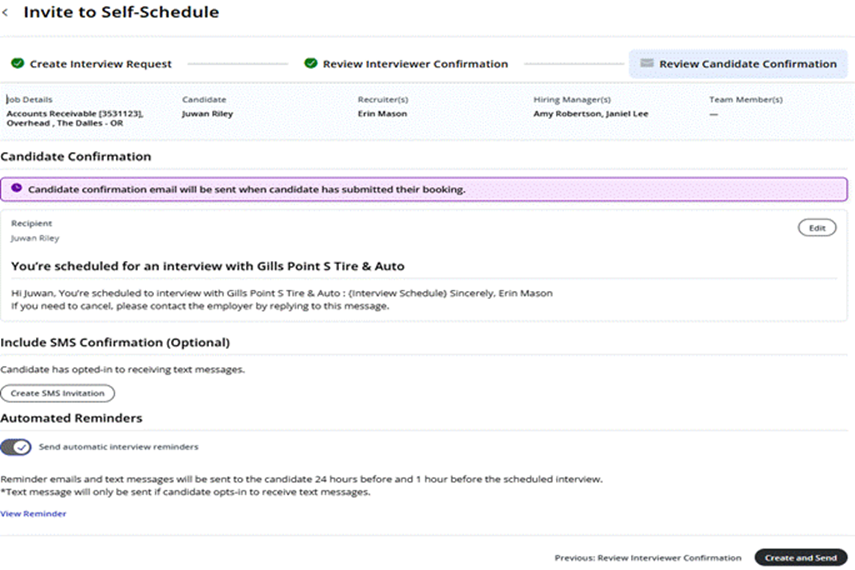
Before you're able to send the Invitation to Schedule to the candidate, you will once again have the ability to verify that the details of the meeting are correct. If everything looks the way you intended it to, click Create and Send, to send the invitation to the candidate.
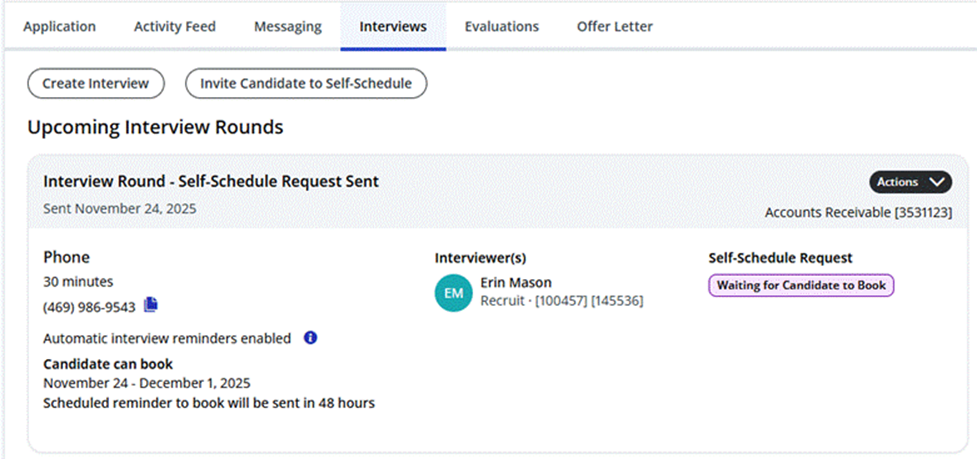
Once you have clicked Create and Send, you’ll be sent back into the Candidate’s profile, where this information will be displayed under the Interviews Tab.
Entering Candidate Notes into Paylocity
After screening candidates, we should always add our notes on the interview to the candidate’s profile within Paylocity, in addition to sending the notes to the hiring managers via email.
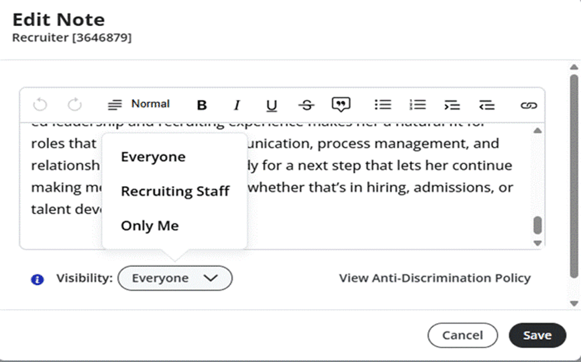
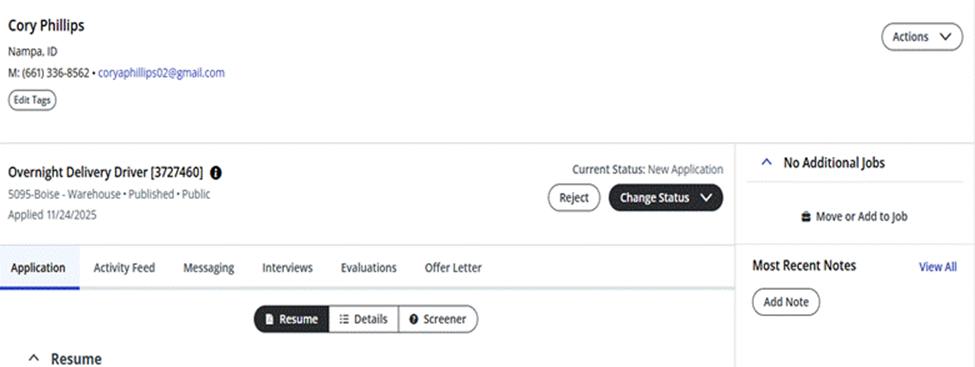
You can do this by navigating to the Candidate’s profile and clicking on the Add Note tab to open a new window.
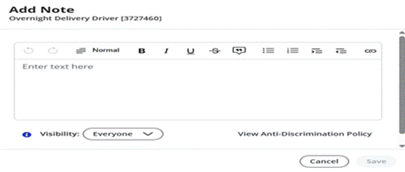
Once the Add Note tab pops up in a new window, add your notes, then click Save.
Your Note should now be visible to anyone with access to the Candidate Profile.
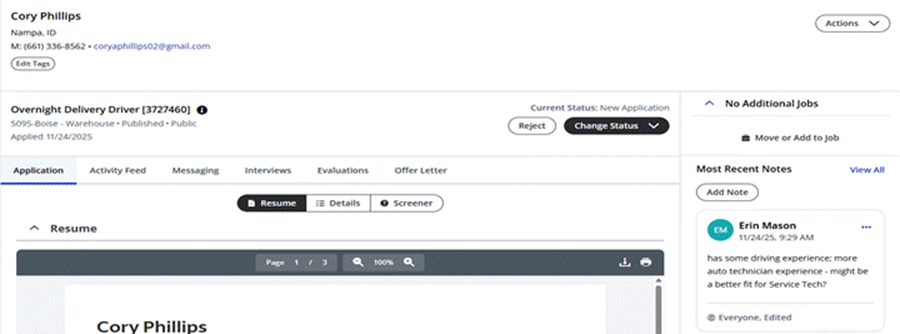
Below is more detailed example a Note added to a Candidate’s Profile after an interview:
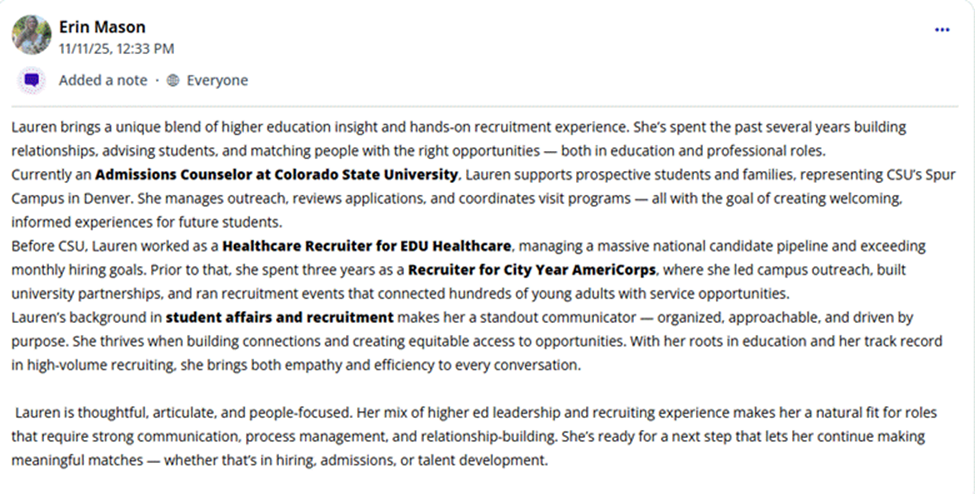
Notes, once added, can be edited to add information or reduce Visibility, if needed. Once the necessary changes are made, click Save to save all changes.