Returns and Credits are managed from the Home, Returned Goods Ticket tab. This tab will track all the parts that are pending credit from vendors.
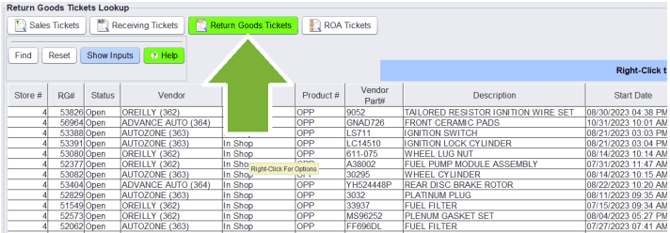
IMPORTANT: Make sure the item was previously POSTED before beginning the return process.
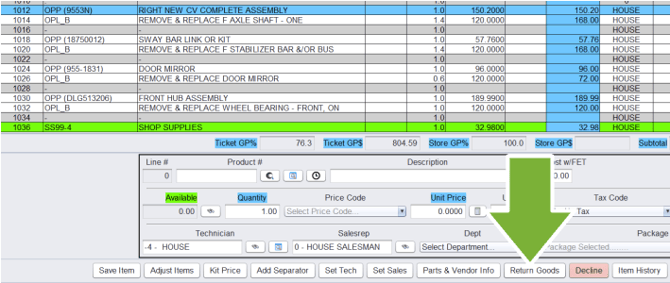
To add a part to this screen, from the Workorder, verify the item is posted, highlight the part that is needing to be returned and click Return Goods. (This is the recommended process for returning nonstock parts).
Fill in the required info and click Post Return & Await Credit:
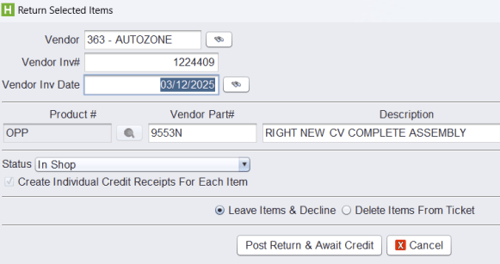
Mark the item as declined on the customer’s Workorder and add an open Credit Receipt on the Returned Goods Ticket tracking screen.
You can also create an Open Return Credit by clicking Create, Returned Goods.
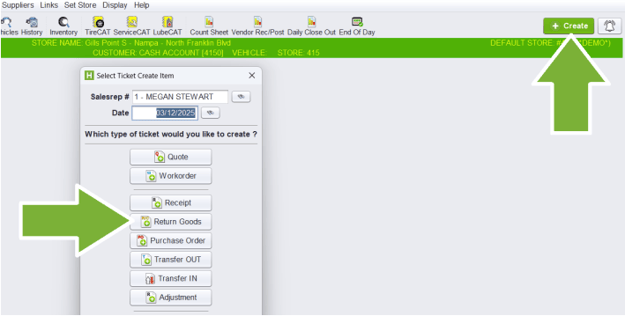
This process is to be used if the item has already been initially received as this process
will not post the initial Receipt, just the Credit. (This is the recommended process for
returning stocking parts as stocking parts have likely already been received).
Once you have created this ticket, it can be left OPEN if still awaiting credit or CLOSED
if the credit has been received.
Close the Credit like you would any other Receipt ticket in HITS, by going to the
Payments tab, entering Vendor Invoice #, Applying A/P Terms and Closing the ticket.
. . . . . . . . . . . . . . . . . . . . . . . .
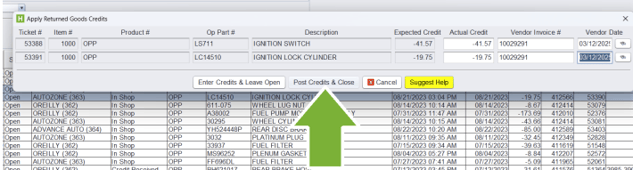
Credit can also be applied directly on the Returned Good Tickets tracking screen.
Highlight one or multiple parts, right-click and select Apply Credits.
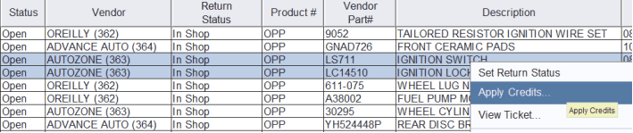
Enter the required information and click Post Credit & Close (assuming your
username has permission to perform this function).