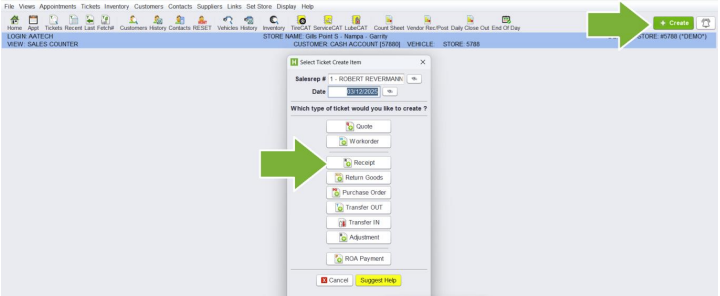
To receive inventory, click the Create button, then Receipt.
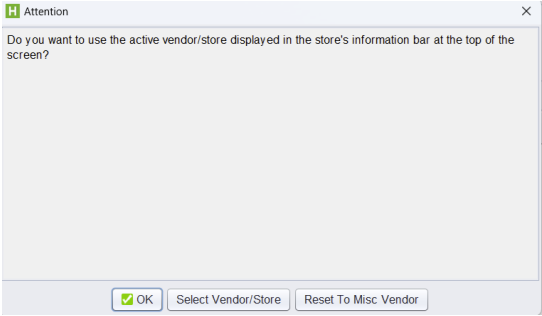
The system will prompt you to select the vendor you are receiving product from. Click
Select Vendor/ Store and proceed to search for and add the correct vendor to the
Receipt.
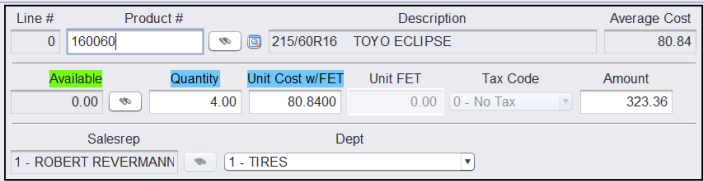
Next, click + Product to add items by product number.
You can use your keyboard to batch entry items on your vendor invoice #, entering
through all items.
After entering all items with correct cost on the Receipt, click the Payments tab.
-
Enter the Vendor Invoice #
-
Tab or Enter over to fill in the Vendor Invoice Date
-
(If applicable) enter the HITS Ticket # or PO# the purchase is for
-
Click Apply A/P Terms
-
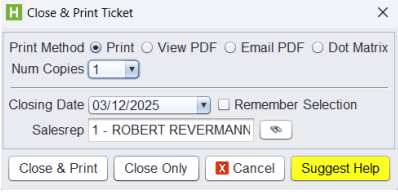
Click Close to finalize the Receipt, follow prompt to close
-
HITS Shop Suite - Service Center Manual: Gills Point S
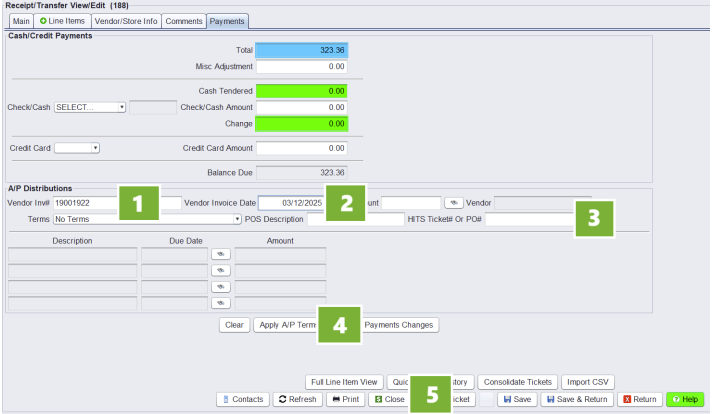
Click Close to finalize the Receipt
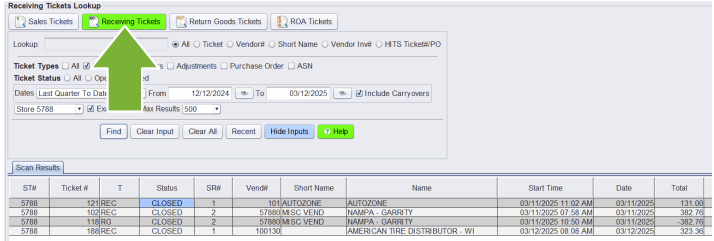
All Receipts in HITS for inventory, nonstock, and expenses can be seen from the Receiving Ticket Lookup screen, found via the Home button.