
This article explains how a customer creates an AutoFlow appointment for a vehicle without entering a license plate, and the how the store operator can still complete the process in HITS by adding the required vehicle details, converting the quote to a work order, and updating the vehicle status to On Lot.
Category applies to both:
- AutoFlow
- HITS
✅ Process Overview
The customer will create an AutoFlow online appointment without a license plate, but the plate must be added later in HITS when processing the appointment into a work order. The process includes:
- Customer Creating the online appointment in AutoFlow
- Processing the notification in HITS
- Completing customer and vehicle records
- Converting to a work order
- Setting the appointment to On Lot
.png?width=670&height=377&name=sample%20image%20(2).png)
IMAGE SHOWS ONLINE SCHEDULER FIELDS NO LONGER REQUIRED FOR CUSTOMERS
✅ Step-by-Step Instructions
Part 1: Customer Creates Online Appointments in AutoFlow (No License Plate)
- Customer Selects the service to be performed
- They enter their customer information
- They enter the vehicle information (Year, Make, Model)
- Customer Skips the License Plate field
- Note: The license plate will be required later in HITS
- Customer Clicks Add Vehicle
- Customer Select the vehicle and click Book Appointment
✅ The appointment is now created without a license plate
- Refresh AutoFlow and confirm the appointment appears on the active customers page
Part 2: Process Appointment in HITS
- Open HITS
- Click the Notifications (bell icon)
.png?width=670&height=377&name=sample%20image%20(3).png)
- Locate the AutoFlow appointment
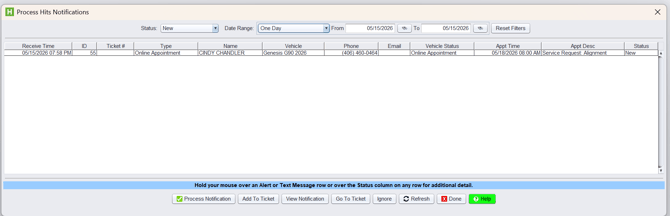
Click Process Notification
Part 3: Add Customer and Vehicle
If New Customer:
- Select Add Customer
- Enter complete customer information
- Click Save and Return
Add Vehicle:
- Click Add Vehicle
- Enter required vehicle details, including:
- License Plate ✅ (Required here)
- VIN (if available)
- Save the vehicle
Part 4: Convert to Work Order
- Return to the main screen
- Review notes carried over from AutoFlow
- Go to the Appointments/Status tab
- You will see “NOT SENT” next to AutoFlow because the appointment is currently an open quote
- You will want to convert it so the data transfers between HITS and AutoFlow
- Click Convert to turn the quote into a work order

- Verify the work order is now open and includes:
- Customer info
- Vehicle info
- Appointment details
- Return to the Appointments tab
- Status should now show “SENT”
Part 5: Set Vehicle to On Lot in HITS
- Update the HITS Status to On Lot then select Save
- This converts an Autoflow Appointment into an Active Customer
- Moves the appointment/active customer to the top of the Autoflow Active Customers Page
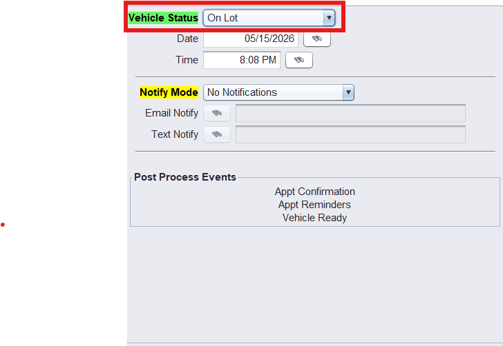
- Refresh Autoflow
- Confirm vehicle status is now On Lot in Both Systems
- You should see confirmation the vehicle was set to On Lot

VIDEO VERSION