
Steps to Merge Vehicles
Option 1: From Vehicle Lookup
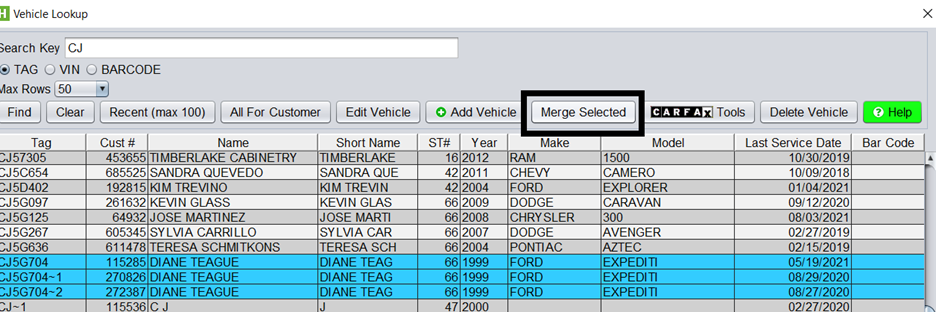
- Open the Vehicle Lookup screen
- Hold down the CTRL key on your keyboard
- Select multiple vehicles to merge
- Click Merge Selected
Option 2: From the Top Menu
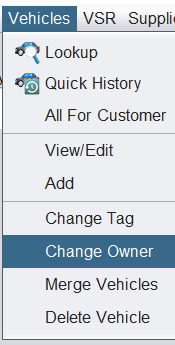
- Navigate to: Vehicles > Merge Vehicles
- Add or remove vehicles from the merge list as needed
From the Merge Vehicles screen, you can continue to add or remove vehicles to be merged.
Finalize the Merge
- Select the primary vehicle (the one all others will merge into)
- Click Merge to Selected Vehicle
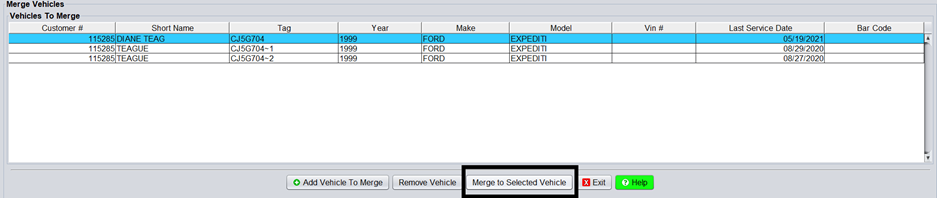
This will merge all history and to the selected vehicle.
What Happens After the Merge
- ✅ All selected vehicles are combined into one record
- ✅ Vehicle history is merged into the selected (primary) vehicle
- ✅ The selected vehicle becomes the single record moving forward
Requirements / Important Notes
- ⚠️ All vehicles must belong to the same customer before merging
- If vehicles are under different customers:
- Use Change Owner first to assign all vehicles to one customer
- Then proceed with the merge
Tips
- Double-check the primary vehicle selection before merging
- Merging cannot be easily undone—verify records before completing
- Use the Vehicle Lookup method for quick merges, or the menu option for more control