
HOW TO MERGE CUSTOMERS
Steps to Merge Customers
Option 1: From Customer Lookup
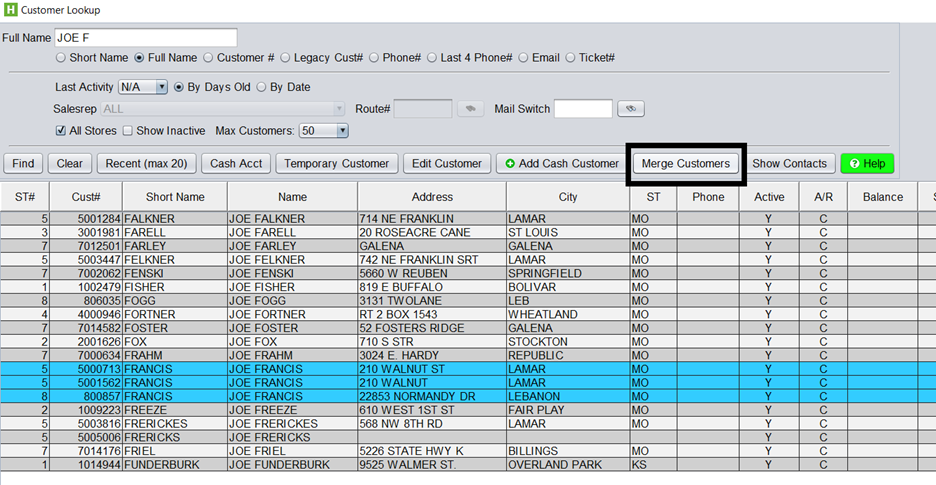
- Open the Customer Lookup screen
- Hold down the CTRL key on your keyboard
- Select multiple customers to merge
- Click Merge Customers
Option 2: From the Top Menu
- Navigate to: Customers > Merge
- Add or remove customer accounts from the merge list as needed
Finalize the Merge
- Select the primary customer account (the account all others will merge into)
- Click Merge to Selected Customer
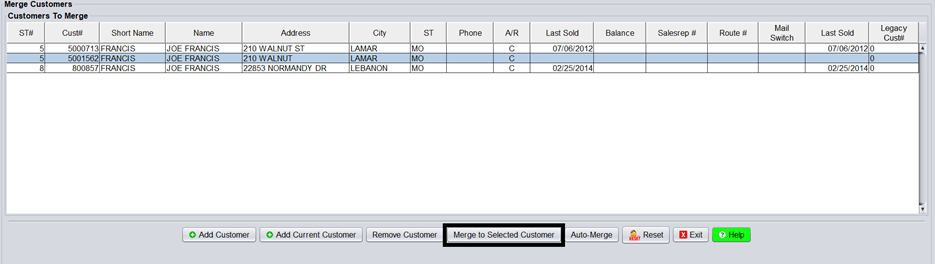
This merges all history and vehicle records into the selected customer account, leaving only that primary account active.
What Happens After the Merge
- ✅ All selected customer accounts are combined into one
- ✅ All vehicle records are merged into the selected account
- ✅ All history is consolidated under the selected account
- ✅ Only the selected (primary) customer account remains active
Requirements / Important Notes
- ⚠️ You cannot merge multiple open item charge accounts that have a balance
- ✅ You can merge cash (non-open item) accounts into an open item charge account
- ⚠️ When merging into an open item account, it must be selected as the primary account
Tips
- Double-check the primary account selection before merging
- Merging cannot be easily undone—verify accounts before completing
- Review balances and account types prior to merging to avoid errors