
This article explains how to create a work order in HITS and use the Print option to automatically create an AutoFlow active customer. Printing the spec sheet creates the customer active customer in AutoFlow and automatically sets their status to Active / On Lot, in both systems.
Note: If an associated AutoFlow appointment already exists the Print will push that existing appointment into an Active customer.
 The arrow in the image points to the Print Button Which Will Trigger the Feature
Category applies to both:
- HITS
- AutoFlow
✅ Process Overview
This process allows you to create an AutoFlow active customer directly from a HITS work order using the Print option. When the work order spec sheet is printed, HITS automatically pushes the customer information into AutoFlow, creates the active customer, and sets the customer’s status to Active / On Lot. This ensures the vehicle and customer are properly tracked in both systems without needing to manually create or update the appointment in AutoFlow.
Note: If an associated appointment already exists within autoflow then that appointment data will need to be manually created in HITS and ensure information matches before selecting Print.
✅ Step-by-Step Instructions
- Begin by creating a new work order in HITS using the customer’s information.
- Look up an existing customer or add a new customer, if needed.
- If creating a new customer, enter all required information, including:
- Name
- Address
- Phone number
- Add the customer’s vehicle information if it is not already listed (Year, Make, Model, and License Plate.)
- Save the vehicle information and return to the open work order.
- Add any services to be performed for the customer.
- Review the work order to ensure all information is correct.
- Select Print.
- Printing the spec sheet automatically:
- Creates the Active Customer in Autoflow or Turns Associated Autoflow Appointments into an active customer if appointment was created in Autoflow
- Automatically sets the status to “On Lot” in both AutoFlow and HITS
10. Close the print window..png?width=632&height=356&name=sample%20image%20(1).png) Image Shows Needed Fields in HITS for Functionality To Work
Image Shows Needed Fields in HITS for Functionality To Work
 Image Shows Result of the Print Push in Autoflow of the Active Customer Pushed to the top of your active customers list regardless of if started in HITS or AutoFlow
✅ Verification
After printing the spec sheet:
- The customer should appear in AutoFlow as an Active Customer
- The customer status should be set to On Lot in both HITS and AutoFlow
Sent Status Validation: In the status section of HITS if you see the Autoflow status is sent before selecting the Print Button then this process will not function. If not functioning then manually set the workorder status to On-Lot to achieve the same effect of pushing an Active Customer into the Autoflow System
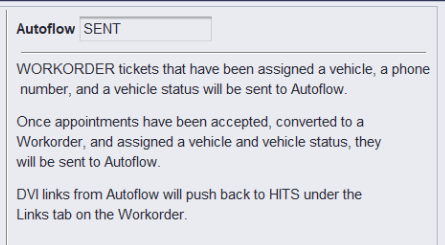
If the Autoflow Status in the Image Above Shows as Sent Before using this feature it will not function (This seen with Online Appointments meaning this dev will not function for Online Appointments)
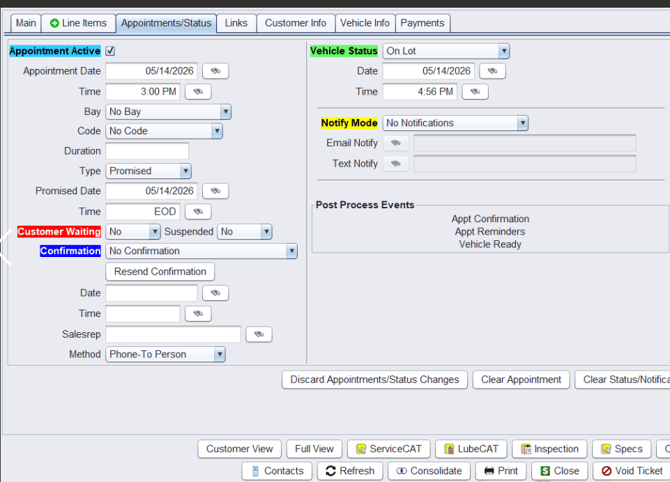
Instead of Attempting to Use the Feature Manually Set the Vehicle Status to ON-LOT as an alternative to achieve the same effect in Autoflow
VIDEO RESOURCE: