
STEPS TO CHANGE CHANGE VEHICLE OWNER
- Look up the vehicle directly, or
- Open an existing ticket associated with the vehicle.
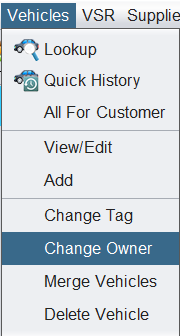
STEP 2. Access Change Owner Option
- Navigate to: Vehicles > Change Owner
STEP3: Select the New Owner
- Enter the new owner's Customer #, or
- Use the lookup button to search and select the correct customer.
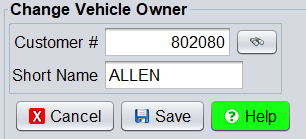
STEP 4: Save Changes
- Click Save to apply the new owner to the vehicle.
What Happens After the Change
- ✅ The vehicle is reassigned to the new owner
- ✅ Full vehicle history remains accessible under Vehicle History
- ⚠️ Previous invoices remain assigned to the original owner and do not transfer
Notes / Considerations
- Ensure you select the correct customer before saving—this change affects future transactions.
- Ownership changes do not merge customer records or invoice history.
- If a mistake is made, repeat the process to assign the vehicle to the correct customer.