
The Why/Purpose: DVI’s are an excellent tool for transparency, recommending services, and presenting information to the customer. Following on these ideas, video inclusions are an excellent tool to have in your DVI as they provide an opportunity for the customer to visually digest the information and provide them with a personalized touch to their DVI therefore providing further reinforcement of their loyalty.
With this spirit in mind this SOP will give you step by step instructions to utilizing the Reason Your Vehicle Here section of a DVI to upload an overview video of a customer’s inspection for the customer to view.
Step 1: Initiate a DVI through the usual process and navigate the reason vehicle is here section.
Select ADD RVH
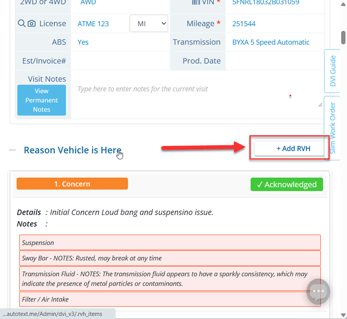
2.) Select "Information & Input of TYPE & DETAILS on RVH
Once you select Add RVH the following pop-up will appear. Input the type & details into the RVH alongside the dvi items associated with the Reason the Vehicle is Here. Ensure you select the type and input some form of details that either cover the reason the vehicle is in the shop or include directional language to ensure the customer knows to view such as DVI Summary Video
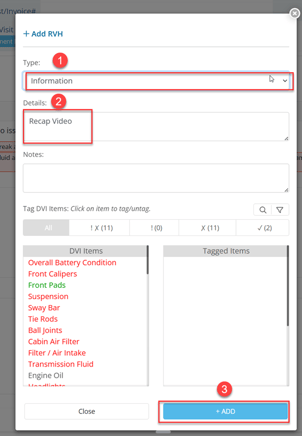
Best Practice is to still always Include Information in the Non-Required Fields to ensure the customer has the complete scope of information
3.) Record or upload the video
Once you have inputted an RVH into the DVI select the small camera icon to the left to upload the video. For mobile phone uploading it will either as for you to select from your phone’s media library or to record in-app. From desktop it will ask for a file upload only.
Best practice for phone usage is to record the video separately then upload. Otherwise, you will have 1 take to do your recording. If you record separately and make a mistake in the video or mis-speak you can start over.
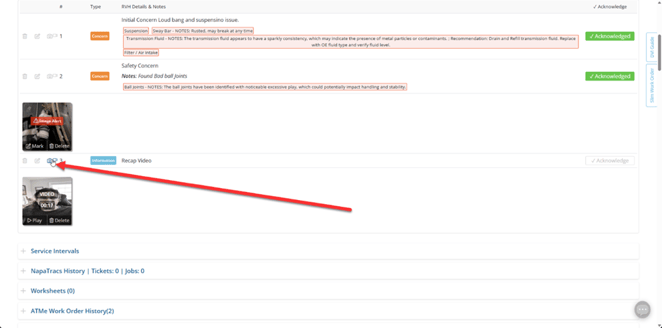
4.) Ensure You Check Your Work & the Recap Video is at the Front of the Playlist.
For best practices in general, you should always double check the entirety of the final DVI before sending to the customer. Once you have completed a DVI, navigate to the top right of the page and find the TEXT & EMAIL Tab

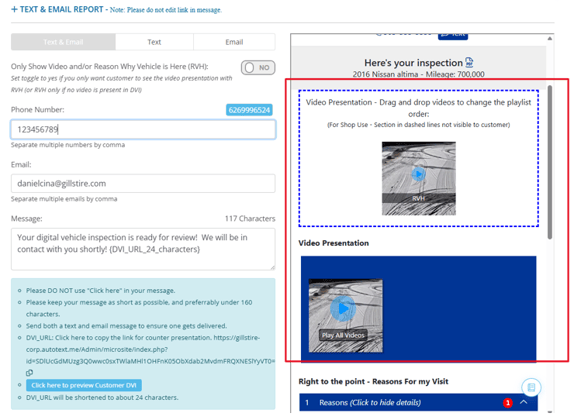
This will pull up the Text and Email Report, instead of initiating the text and email from this page select Click Here to Preview Customer DVI at the bottom of the page for a live view of what the customer will be sent.
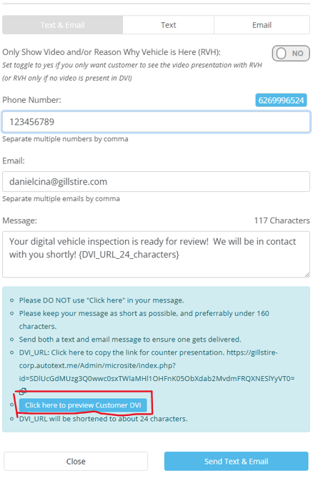
Upon selecting this button, you will see the preview of the customer’s DVI. You will see a solid blue section and a dotted blue section. The solid blue section is the LIVE area where the DVI overview video will populate. The dotted blue section is NOT LIVE and does not populate on a customer DVI. You will utilize that area to order the videos of your DVI if you perform more than 1. If you perform more than 1 video for whatever reason, ensure that the overall DVI recap video is always first in the order by being on the furthest left in the ordering.
Upon thorough inspection of your DVI and review of the video order the DVI is ready to be sent off. From this page you can trigger this by scrolling to the bottom of the page and selecting Send Text & Email.
Closing Notes: The usage of this SOP takes place within DVI set up for the customer. Follow your usual progression and ensure you are including this in your process. With this video feature available the expectation is that there is a recap video for every customer DVI performed.
TYG