
Your signature “snippet” lives in two different places depending on what you actually want:
- Create a signature snippet (reusable text block, e.g. canned response)
Snippets are short, reusable text blocks you can insert into emails, chats, notes, and ticket replies.
So in practice:
- A snippet = reusable saved block of text.
- A signature snippet = that same kind of snippet, but the content is your sign-off, like:
Thanks,
Dax Chandler
Gill’s Point S Tire
Phone / email / links
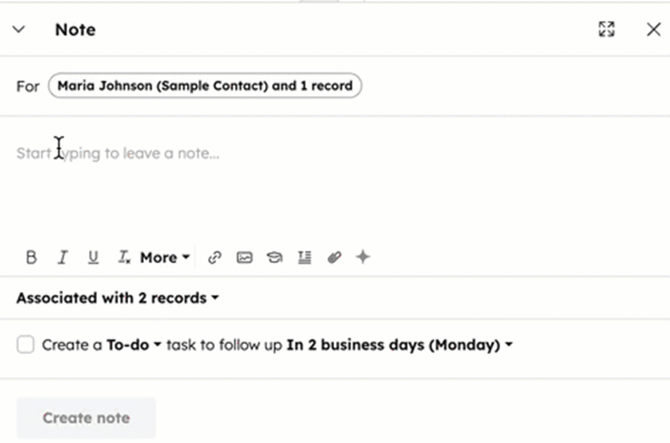
You can insert it in a reply by typing [#] + the snippet shortcut or choosing it from the snippets menu.
To create a snippet
Go to the main snippets library:
- In HubSpot, open Snippets.
- CRM – Snippets
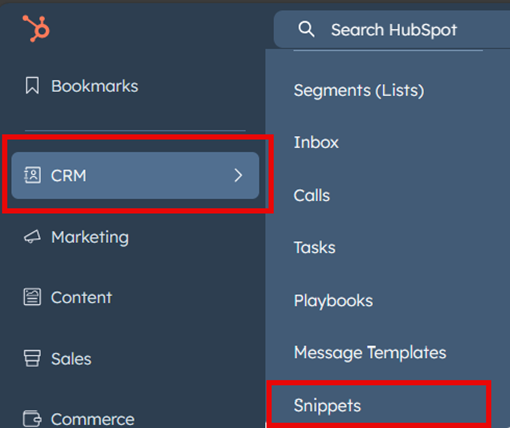
2. Click Create snippet in the top right.
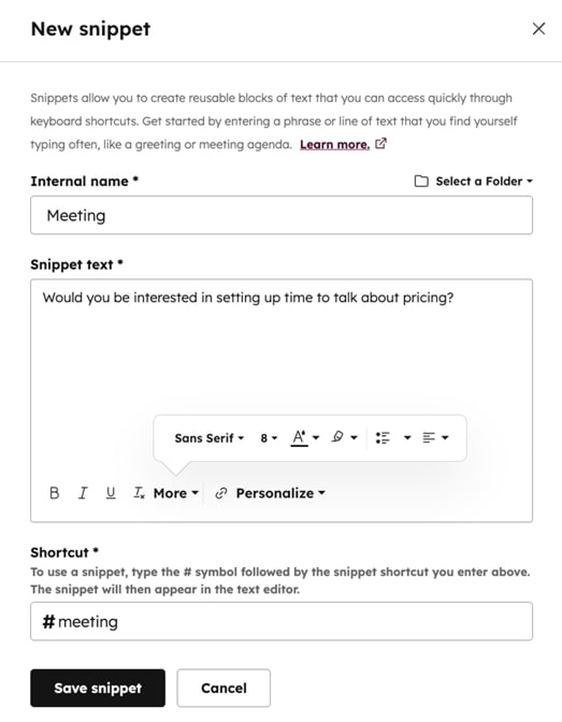
3. Build your signature text, give it a shortcut (e.g. #itsig), and Save snippet.
You’ll then be able to insert it in emails/replies by typing # + shortcut or by choosing the snippets icon in the editor.
 2. 2. Add your automatic signature for help ticket emails
- Open Settings.
- Go to General > Email.
- In Configure, click Manage email signatures.
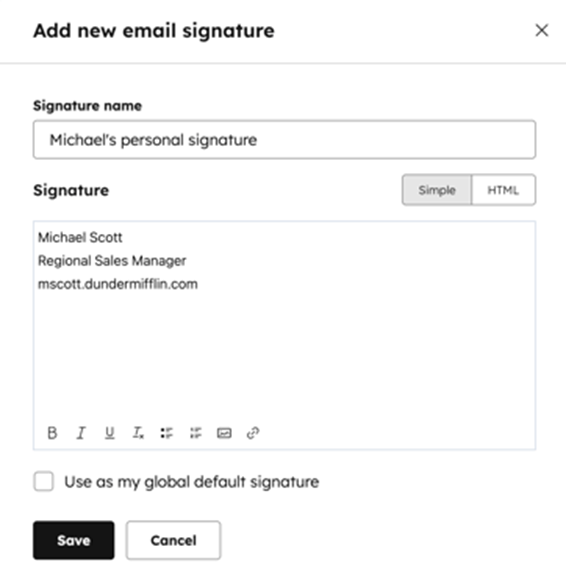
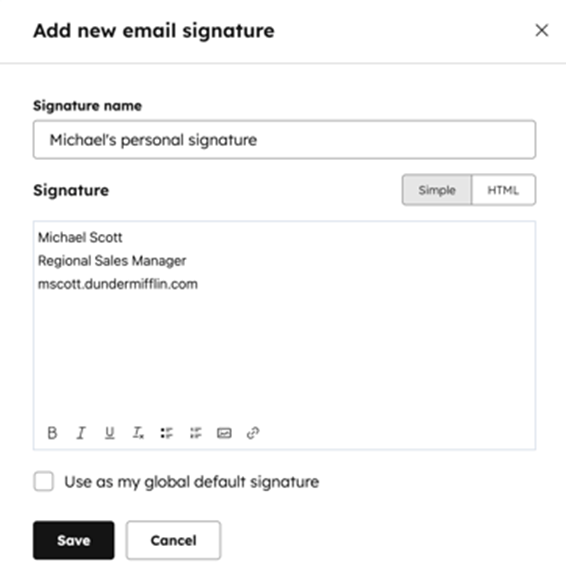
4. Enter your signature in the editor.
5. If needed, switch to HTML to paste formatted signature code. 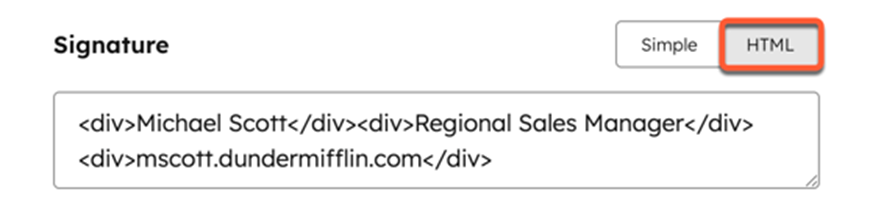
6. Save it.
7. If you have multiple signatures, select Use as my global default signature so it auto-applies by default.
That’s the setup for automatic signatures used in CRM emails, including help ticket replies.