End Of Day Closing Process
Daily Checklist of Accounting Requirements:
❑ Close registers once the shop is cleared of customers
❑ Enter any fuel and/or towing sales or bills/receipts
❑ Verify customer work orders are closed on Sales Counter Home screen
❑ Reconcile and post all vendor bills/item receipts using the Vendor Rec/Post tab
❑ Count the cash, tally checks, reconcile card sales, and prepare bank deposit slips
❑ Validate the HITS summary, and post the batch
❑ Close the Day in HITS
❑ Log out of POS and other apps
❑ Scan daily deposit documents
HITS Shop Suite - Service Center Manual: Gills Point S
Version 20250312 129
❑ Secure the cash and till drawers in the safe
❑ Perform bank deposit on the way home, at least 3x/week
Activities you should perform throughout the day, real-time, to ensure a faster End of Day Close:
❑ Enter item receipts into HITS as soon as delivery has taken place; don’t wait until end of day
❑ Document returned quantities and/or vendor credits in HITS
❑ Provide supporting documentation and submit Brex expenses/petty cash – at minimum, by
end of day Friday
Close registers once the shop is cleared of customers
Do not remove till drawers until the last customer has left the store and all doors are locked. Remove the till and start the cash count activities in the presence of another employee.
Fuel and/or Towing
Fuel and Towing sales and bills must be collected from their respective systems and posted into HITS using a work order:
1. Create a new work order.
2. Enter a FUEL line item for fuel sales.
3. Enter a FUEL line item for fuel receipts/replenishments.
4. Make a cash ticket for all towing or fuel for the day.
5. Close work order
Verify the Customer Work Orders are Closed
1. On the Sales Order Home Screen
2. Find the open work orders
3. Close any work orders that (were paid and not closed? Any to be voided?)
Vendor Bill Reconciliation
To review your nonstock parts info and ensure Vendor Invoice #s have been entered correctly, you can go to the Vendor Reconciliation/Post screen to review.
This is not a required end-of-day process if you have been properly entering your vendor invoices throughout the day.

1. Click the Vendor Rec/Post button from the main screen
2. Ensure the correct day is populated (defaults to the current day)
3. Click Fetch Items
4. Click the box to the far right each line item to post - **need info from David A re: selecting items.
What "Paid and Not Closed" Means
Here's an explanation of what "paid" but not "closed" might mean and how to address
it:
• What "Paid" Means:
• The customer's credit card transaction has been authorized and approved by the payment processor.
• The amount has been charged to the customer's card.
• What "Not Closed" Means:
• The batch processing, which transfers funds from the payment processor to your account, has not yet completed.
• This process may take anywhere from a few hours to a couple of days.
• Once the batch is processed, the transaction will be marked as "closed".
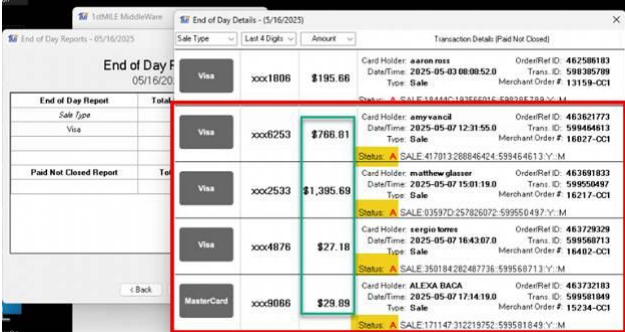
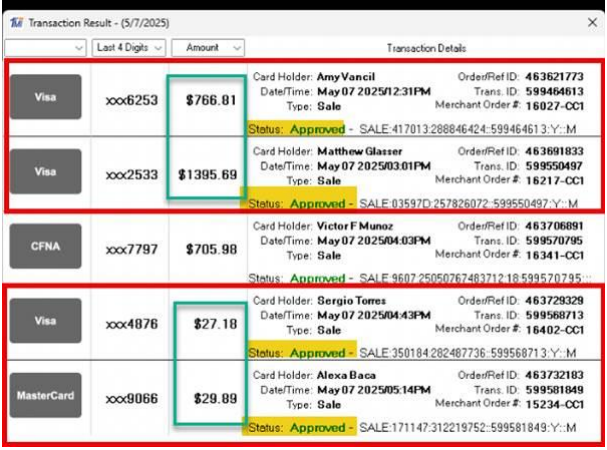
If your 1st Mile Middleware application indicates that a transaction is "paid" but not "closed," it likely means the payment has been processed and charged to the card, but the batch processing for transferring funds to your account hasn't completed yet. You can verify this by comparing the dates of the “paid not closed” transactions in the 1st Mile EOD reports with the Transaction reports for those days. For example, look at transactions from today, dated 05/03 and 05/07. My examples focus on 05/07 to demonstrate what you are observing.
The first screenshot is the EOD Report from today, displaying the "Paid Not Closed" message along with the credit card transaction, amount, and status marked with a bright red "A."
The second screenshot shows the Transaction search for 05/07. As seen, these transactions were approved, meaning the money was taken from the card. It corresponds with the red "A" on the EOD, indicating approval.
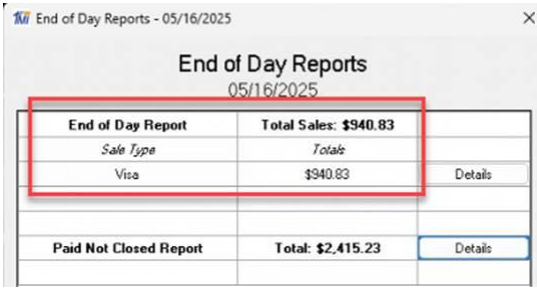
Additionally, the payment amounts in HITS match the End of Day totals in 1st Mile. The EOD totals in 1st Mile do not include "Paid Not Closed" transactions, yet they align with the payments recorded to invoices in your End of Day in HITS, confirming the accuracy of your EOD.
Here is your EOD Report in 1st Mile showing the credit card transactions for the day.
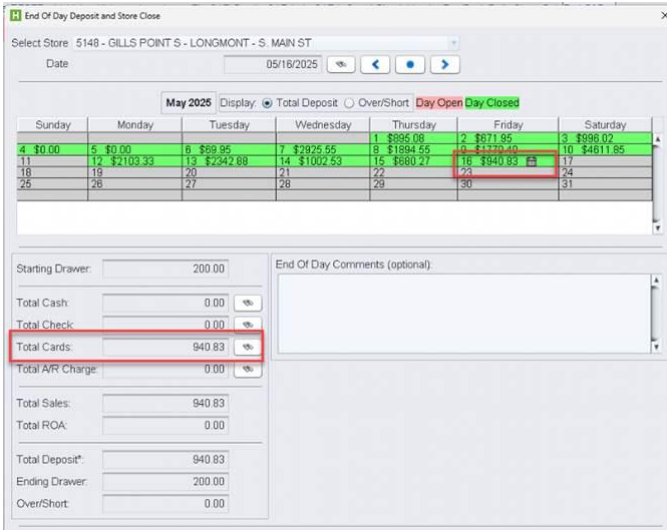
And here is your EOD Report in HITS showing your credit card transactions for the day.
The "Paid Not Closed" notifications are simply informational and require no action on your part, as the payments have been taken and are pending closure in the payment system. These items typically clear on their own, and generally, there is no need for concern. It is merely part of the transaction reporting in 1st Mile.
Verify tender, drawer, and post deposit
1. Go to the End Of Day screen to review sales, tender types, and drawer.
2. Reconcile total cash, check, and card transactions in each Totals category:

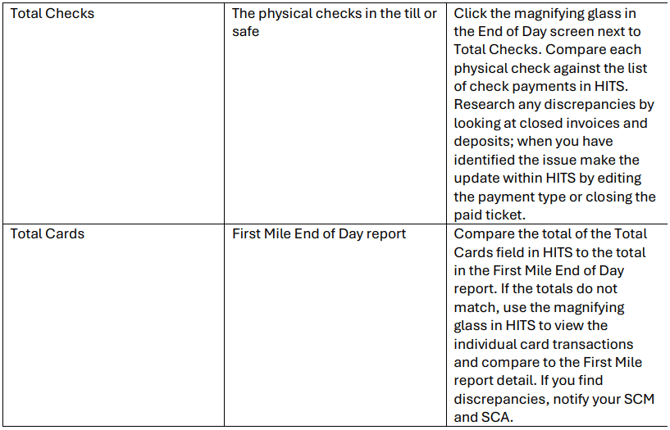
NOTE: You can click on the binoculars on each subtotal to investigate any discrepancies.
NOTE: Consider that Batch tickets can still be edited prior to end of day close, so if you need a fix made to any tickets, a user with permission access can make the fix prior to the ticket being finalized.
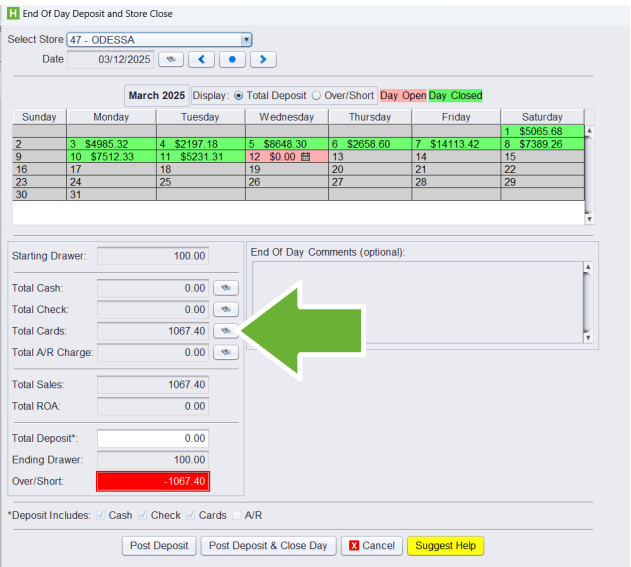
3. Enter the deposit amount for all tendered payments verified and click Post Deposit.
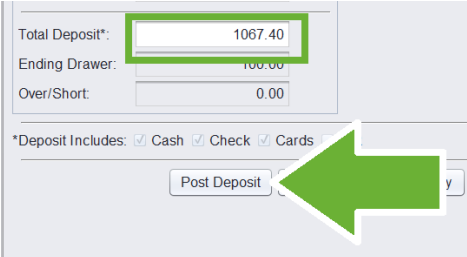
4. Fill out a bank deposit slip for cash (minus Ending Drawer amount) and checks.
5. Insert the cash, checks, and deposit slips into the secure Night Drop deposit envelope.
First Mile Close Process
Open First Mile Icon on the Desktop
This screen will pop up – Hit Cancel
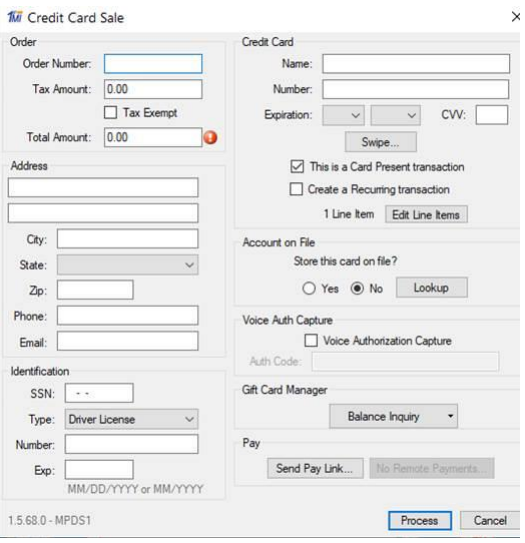
This screen will pop up – Hit Cancel
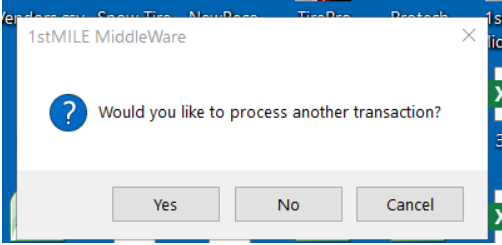
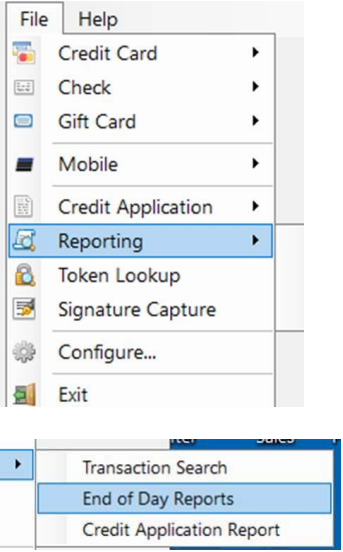
Go to >File > Reporting > End of day Reports
If End of Day Report is not an option choose Transaction Report
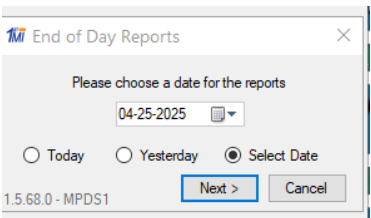
Select your Date
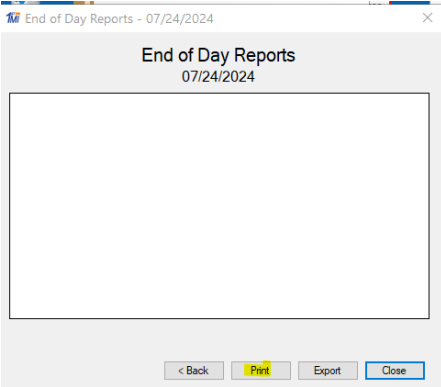
This will generate the report, and you can print it
Tire Connect EOD Procedure
Tire Connect orders will be received via the store's email inbox. To ensure all orders are properly accounted for during the daily closeout process, follow these instructions:
1. Print All Tire Connect Orders Received:
• At the end of each day, print all Tire Connect orders received via email, regardless of whether they have been processed in Traction.
2. Include Only Orders Needed to Balance the Till:
• Review your till to identify any discrepancies.
• For orders that correlate to work orders in the system and are required to balance the till, include those printed orders in your daily closeout package.
3. Store Unused Orders in the Till:
• If an order is not yet needed to balance the till or cannot be correlated to a work order in the system, keep it in the till until it is needed.
4. Daily Closeout Package Requirements:
• Attach the relevant Tire Connect orders, credit card batch reports, bank receipts, and any other required documentation. Ensure that all totals match to avoid discrepancies
Finalize Batch Tickets
This step is necessary to sync inventory data between HITS and RM Warehouse Management
1. From the End Of Day screen, click the Batch Close button.
2. This will take you to the screen to finalize all of your Batch Invoices.
3. Validate the summary total against the total in the Cash/Checks/CC report.
a. Go to Views >> Reports>>Cash/Check/CC>>Run Report
4. Click the Close button, let the process run, and when complete, click Return.
Close Day in HITS
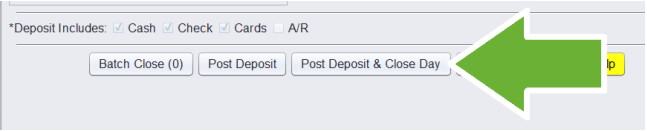
To finalize your day, click the Post Deposit & Close Day button, this will send your store’s data to the NetSuite accounting system.
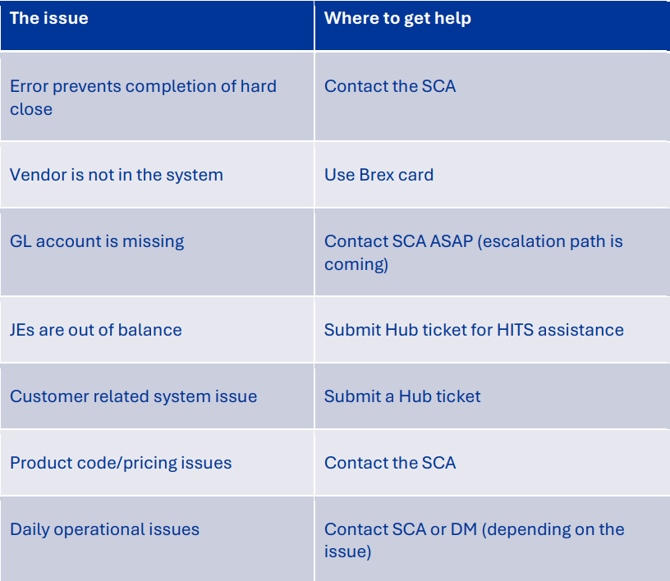
If you receive an error, please contact your Service Center Accountant (SCA)
Log out of HITS and other systems
For security purposes, log out of all apps, computers, and devices, turn them off or put them into Low Power/Sleep mode.
Scan Daily Deposit Documents
Daily scans should include:
• First Mile end of day report
• Hand-written deposit slips for cash and checks
• Any 3rd party funding authorization slips (Koalafi, Synchrony, CFNA, etc.)
Payment recap report Views>>Reports>>Recap and Summary>>Payment Recap
HP E52645 All-in-One Quick Guide
How to Use Quick Sets for Deposits and Invoices
1. Preparing Documents:
• Place your document face-down on the scanner glass or face-up in the document feeder. Adjust paper guides to fit.
2. Accessing Quick Sets:
• On the printer’s Home Screen, tap the Quick Sets icon.
• Choose the desired Quick Set: Gills Daily Deposit or Gills Invoices.
3. Gills Daily Deposit:
• Insert your entire day's deposit paperwork into the scanner (ADF or flatbed).
• Select Gills Daily Deposit Quick Set and hit Send.
• For multiple pages, use the scan preview to add each page before sending.
• No manual input needed—files are automatically named with date and time.
4. Gills Invoices:
• Feed single-page invoices (up to 10–20 pages at a time) through the ADF.
• Select Gills Invoices Quick Set—each page will be saved as a separate file
automatically.
5. Sending Documents:
• Once your documents are ready, press Send to email them.
Note: The Gills Multi-Page Documents Quick Set is no longer available. Use the
Invoices Quick Set for all invoice scanning.
Secure the Cash/Till Drawers
If you are not going to the bank en route home, then put the deposit envelope with the cash, checks, and deposit slip into the service center safe.
Put the till drawers into the Service Center safe and ensure that it is locked.
Bank Deposit
You are required to deposit cash and checks at the bank at least three times per week.
Daily is preferred. If you are going to the bank and using the bank Night Drop, then some best practices for doing so are:
- Choose well-lit locations for night deposit boxes.
- Be mindful of your surroundings before approaching the night deposit box.
- Only use the secure, tamper-evident deposit envelopes provided by the bank.
- Follow scanning instructions (in the Miscellaneous section of this document) and add to OneDrive....:
- the depository system's receipt
- the completed bank deposit slip
- the credit card report from the First Mile machine
- EOD cash/check/cc screen from HITS
- Avoid routine patterns when making night deposits.
- Ensure that the chute is fully closed and locked before you walk away from the Night Drop box
Any Problems?