
How to Fix “Storage Almost Full” on Your Computer (Windows)
for Users WITH OneDrive Account Access
When to use this version
Use these steps only if the user:
- Has a company OneDrive account
- Syncs folders (Invoices, Documents, Desktop, etc.)
- Is running out of space because files are stored locally
PURPOSE
This process frees up disk space by removing unused local copies of files while keeping everything safely stored in OneDrive.
⚠️ No files are deleted.
STEP‑BY‑STEP INSTRUCTIONS
Step 1 — Open Storage Settings
- Click Start
- Open Settings
- Select System
- Click Storage
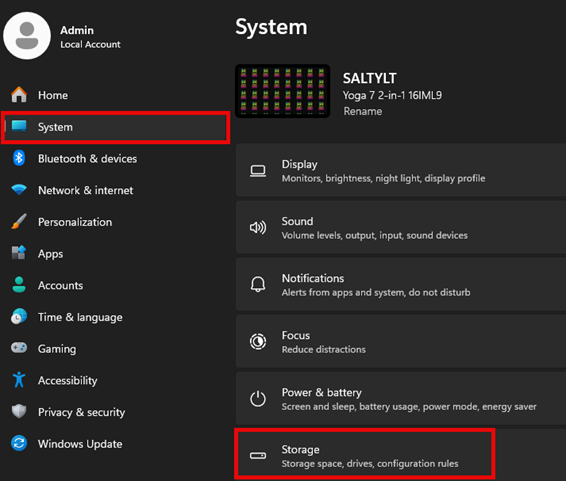
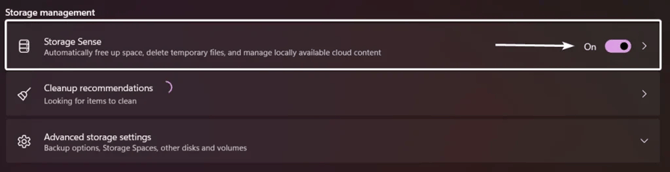
Step 2 — Turn On Storage Sense
- Locate Storage Sense
- Toggle it On
Step 3 — Configure Storage Sense
- Click Storage Sense (or Configure Storage Sense or run it now)
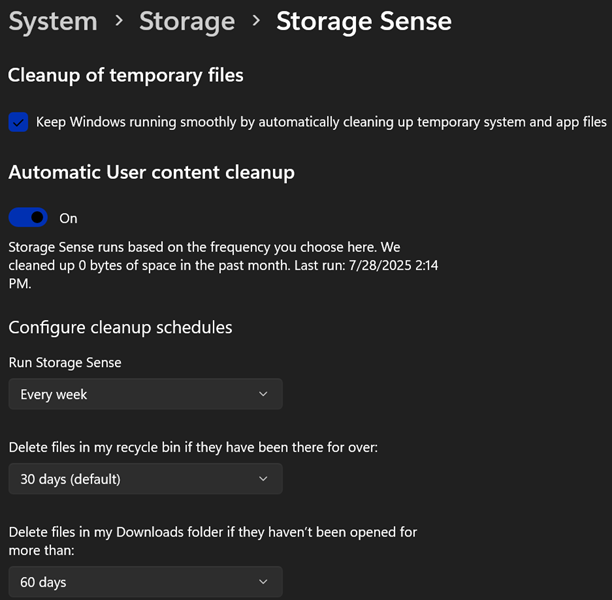
Enable:
- ✅ Keep Windows running smoothly
- ✅ Automatic User Content Cleanup
Step 4 — Configure OneDrive File Behavior (IMPORTANT)
- Scroll to the OneDrive section
- Under Locally available cloud content, select:
- 14 days
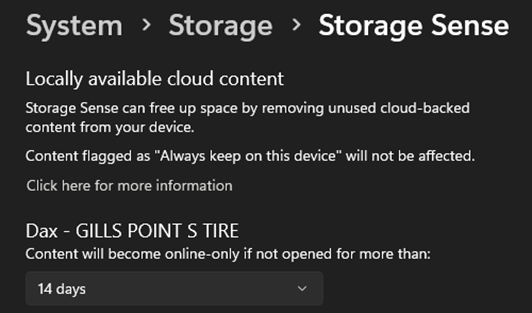
✅ Files not opened in 14 days will return to the cloud
✅ File names remain visible
✅ Files re‑download automatically if opened
Step 5 — Run Storage Sense Immediately
- Scroll to the bottom
- Click Run Storage Sense now

RESULT
- Disk space is reclaimed
- Files remain safe in OneDrive
- Computer performance improves
- Storage Sense continues running automatically
IMPORTANT NOTES (DO NOT SKIP)
- Files are not deleted
- This is the preferred IT‑approved method
- Best solution when OneDrive syncing causes low disk space