
Exporting Count Sheet Reports to CSV in HITS
Download Count Sheets
- In HITS, navigate to Views > Reports > Inventory > Count Sheets
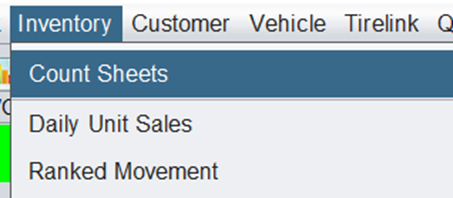
- Make the appropriate selections for your report criteria
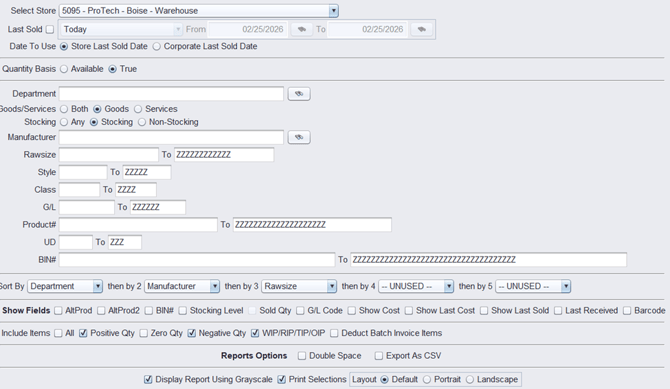
- To export the report to a spreadsheet, select Export As CSV.
- Click Run Report.
- Name the report so you can easily identify it and click Export.

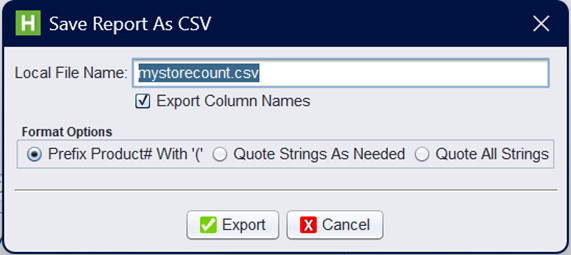
- When the File Exported records are returned and you are asked if you want to “Open file now using your default CSV application?”, select Done.
- Locate your .CSV file in the GSTNET folder (C:\GSTNET) to open it in Excel using your Microsoft 365 web-based license.
Opening a .CSV Exported Report in Excel Web (Microsoft 365)
Step 1: Access Your Microsoft 365 Dashboard
- Go to: https://www.office.com
- Sign in with your Microsoft work account.
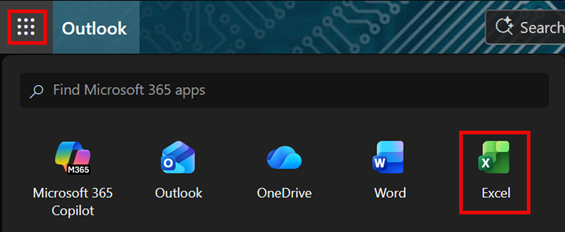
- Click the 9-Dot Grid in the top left corner and select Excel.
Step 2: Upload the Excel File
- In Excel, click Upload.
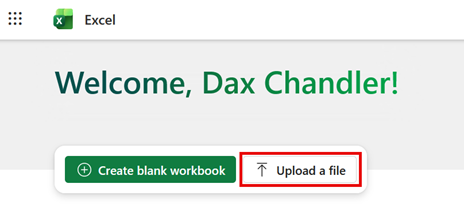
- Select Files and browse to C:\gstnet.
- Choose the Excel file that you saved from HITS
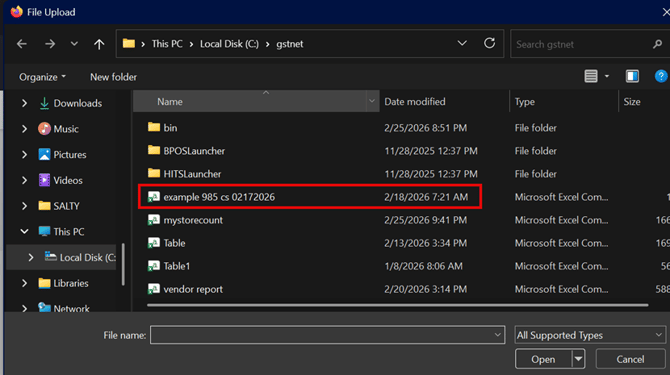
- Click Open to upload the file.
Step 3: Open the File in Excel Web
- The file will automatically open in Excel for the web.
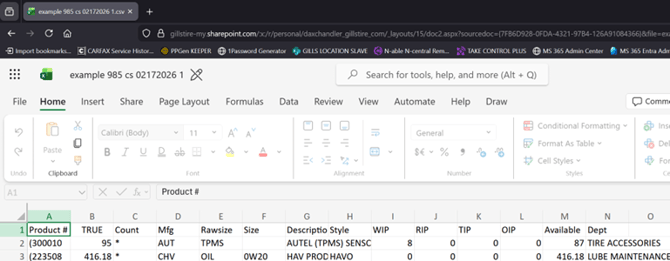
- Any changes you make are saved automatically.
✅ Result: You are now editing the file using web‑based Excel licensing.