
1. Previous Functionality:
When performing a DVI and selecting the complete button previously you would have 2 buttons populate to push the DVI into HITS when the active visit is synced to the workorder. This button populates at the bottom of the DVI sheet as the Submit DVI to SMS (Shop Management System) & in the Top Right of the Sheet as the Push DVI button.
Both buttons only populate after completing the DVI & selecting the Click Here to Complete Inspection button at the bottom of the DVI Sheet.


2. New Functionality:
The New functionality removes these 2 buttons in favor of automatically pushing to the HITS links section of a workorder via selecting the Click Here to Complete Inspection Button at the bottom of the sheet.

What this means is that users will no longer have to take that extra manual click to push the DVI into HITS with the removals of those buttons. When properly synced between a HITS workorder & Autoflow Active Visit selection of the Click Here to Here to Complete Inspection Button will auto push the DVI into HITS.

3. Re-Push Functionality:
As commonly seen, users may need to make amendments to DVI’s & push again to the HITS workorder. Under this new functionality the initial submission will automatically push into HITS, however amendments to already submitted DVI’s will require manual action.

If amendments must be made on a DVI after it has been completed & pushed to HITS you will make the DVI amendments, then select the RE-PUSH DVI button in the top right of the DVI sheet. This button will only populate after a DVI has been marked as complete.
4. How It Populates in HITS:
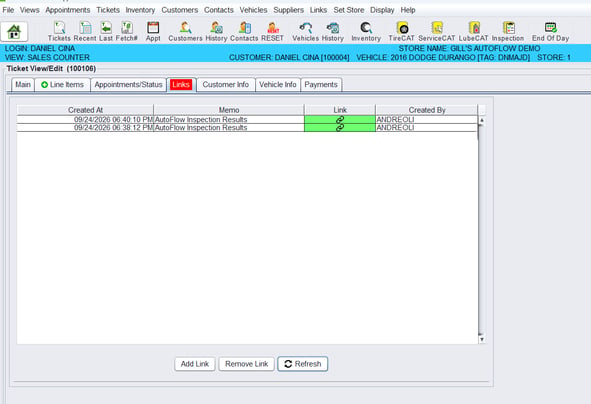
After pushing the DVI from Autoflow into HITS the DVI will populate in the Links section of a HITS workorder per normal integration flow. Each submission & push will send a DVI link into that section of the HITS workorder. Upon reaching this page after auto-pushing a DVI, select refresh to populate DVI results.
.png?width=597&height=411&name=dvi%20autopush%205%20(1).png)
If you Re-push a DVI into HITS the links section will show multiple URL options for selection with timestamps. The new DVI as well as the old DVI will both reflect the changes made from the user Re-Push into the system.
5. Caveats:
This functionality will have the same caveats as our current state of the HITS-Autoflow integration.
This functionality will only work via a properly synced HITS workorder & Autoflow active customer (see here to learn more about the HITS-Autoflow integration). This is the only scenario that will allow this feature to function properly. Mapping the RO number onto the DVI or Active Visit will not function as a substitute for this.
6. If Dealing with a Duplicate Appointment:
As seen previously, a duplicate appointment can be defined as when you have an active visit & an appointment (or another active visit) for the same customer that will typically be in or near the same timeslot.
This is triggered by pushing to On Lot in HITS with mis-matched information between HITS & Autoflow (name, primary phone #, license plate, year, make, & model) or selection of the ON LOT button within Autoflow & prior to ON LOT selection in HITS. In either scenario you will have an active visit & appointment or 2 active visits depending on the duplication source.
.png?width=670&height=86&name=AUTO%20PUSH%20DVI%207%20(1).png)
.png?width=300&height=300&name=AUTO%20PUSH%20DVI%207%20(2).png)
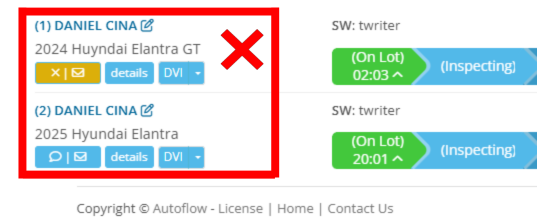
The active visit (or one of them) will have information that corresponds directly to the HITS workorder. This will be the active visit to work from as HITS is regarded as the system of record and will be the correct information. To ensure this new functionality works for you be sure to perform off the correct active visit as it is what is properly synced & close the duplicate appointment/active visit to remove it from your autoflow board.